
Shopify Visitor Logs: See Which Rule Blocked an IP in Blockify

A visitor gets blocked on your store, and you need to know why. The old Visitors table showed the reason as “Blocked by …” but never named the rule behind it, so the answer often ended up in a support ticket.
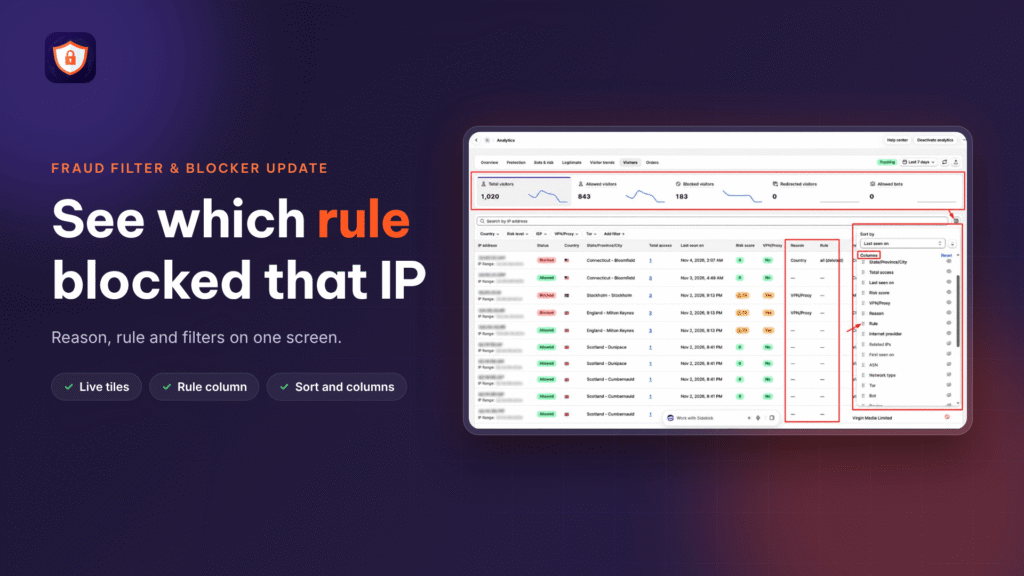
Blockify Fraud Filter has rebuilt the Visitors tab in Analytics. Your Shopify visitor logs now put the full picture on one screen: five live tiles, filters that stay in view, a clickable Rule column and a Sort and columns control. Nothing changes for your shoppers. This update is about how you read the log.
Shopify Visitor Logs Now Open on One Screen with Five Live Tiles
Before, you opened the Allowed, Blocked and Redirected sub-tabs one at a time, and nothing above the table gave you a total. Now the tab opens on a single list with a strip of tiles on top.
- Five tiles: Total visitors, Allowed visitors, Blocked visitors, Redirected visitors and Allowed bots. Each shows the count for your date range, a trend line and the change against the previous period.
- Tiles switch the list: Click a number to see those visitors. The tab opens on Total visitors, which combines all three groups and adds a Status column.
- Bot rises stand out: A rise in bots is marked orange rather than green, because more bots is rarely good news.
- Available on every plan: The update is live for all Blockify merchants who use Analytics.

Find Which Rule Blocked a Visitor with the Rule and Reason Columns
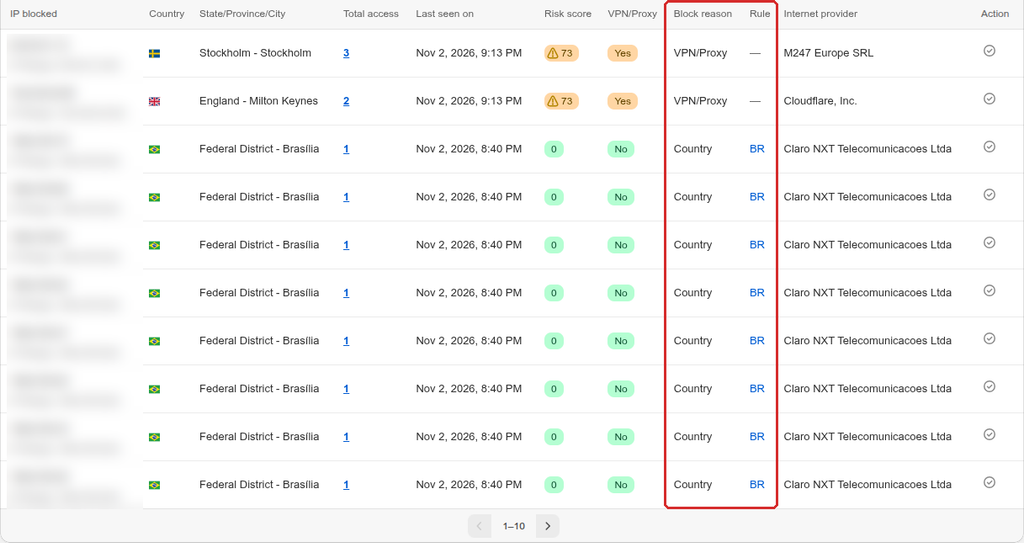
This is the change that removes the guesswork. Every blocked or redirected row now says why and which rule acted.
- Rule column: Shows the rule that acted. Click its name to open Block & Re-director on that rule’s tab, with the rule already searched.
- Reason column: Shows only the reason label, such as Country or VPN/Proxy, without the “Blocked by” wording. The heading follows the list: Block reason on Blocked visitors, Redirect reason on Redirected visitors, Reason on Total visitors.
- Deleted rules: A rule you have since deleted shows its name with (deleted) and no link. A dash means no rule applied.
- IP blocked heading: On the Blocked visitors list, the first column heading now reads IP blocked.
Filters and Search for Blocked Visitors Stay on Screen
- Always visible: Country, Risk level, ISP, VPN/Proxy and Tor sit right under the search box. You no longer click a filter button to reveal them.
- New Tor filter: It works on every list.
- Add filter: Holds the rest, including device, browser, traffic type, block reason and total access.
- Search: Searches by IP address. On Allowed bots it also searches bot names.
- Separate memory per list: Each list keeps its own filters, search text and page size, so a filter set on Blocked visitors does not follow you to Allowed visitors.
Sort and Columns: Arrange the Visitor Log for One Investigation
The Sort and columns button sits next to the search box.
- Sort by: Last seen on, Total access or Risk score, with a button to flip the direction.
- Show, hide and reorder: The eye icon turns a column on or off. Drag a row to change the order, or select it and press Alt with the up or down arrow. IP address is always shown, and Reset puts everything back.
- Deeper columns: Add Tor, Bot, Related IPs, First seen on, ASN, Network type, Device, OS, Browser, User agent, Last page or Source when you dig into a case.
- Remembered layout: Your choice is saved on the browser you use.
Why Shopify Visitor Logs with Rule Data Save You Support Time
- Answer “why was this IP blocked” yourself: Reason and Rule sit in the same row, so you read the cause without asking anyone.
- Catch a wrong block quickly: If a real customer was stopped by mistake, the row shows which rule did it, and you can fix that rule or unblock the address.
- See the whole picture first: The tiles and their change against the previous period show where traffic is moving before you open a single row.
Allowed Bots: Check the Internet Provider Before You Trust a Bot Name
The Allowed bots list now has a Bot column with a badge that tells you how far to trust each name.
- Verified good bot: One of the crawler families Blockify recognises.
- Allowed by you: A bot you added to the Allowed bot list.
- Unverified: Everything else, however familiar the name looks.
- A banner reminds you: A bot name is only a claim. A tool copying your content can call itself Googlebot, so check the Internet provider column before you block or allow a bot.
How to Investigate a Blocked IP in Shopify Visitor Logs
Quick steps (4 steps)
- Open Analytics -> Visitors and click the Blocked visitors tile.
- Search the IP address, or narrow the list with Country, Risk level, ISP, VPN/Proxy or Tor.
- Read the Block reason and Rule columns on the row. Click the rule name to open it in Block & Re-director.
- If a real customer was stopped by mistake, click the Unblock icon in the Action column and confirm. Blockify adds the address to your whitelist rules.
Block a visitor who got in (optional)
Click the Allowed visitors tile and find the address. In the Action column, click the block icon and confirm with Block in the Block IP dialog. To block several at once, tick their rows and use the action above the table.
Export Your Shopify Visitor Log by Email
- What you get: Export csv emails you the list you are viewing, for the dates and filters you picked.
- Choose your columns: The export includes optional columns such as Tor, Device, OS, Browser and Session ID.
- If the file does not arrive: Check the recipient email and your spam folder first, and give large exports a few minutes.
Plan Availability and Limits of the Visitor Log
- Every plan: The log, the Action shortcuts and the export are on every plan.
- Free plan: Blockify records your first 200 unique visitors and then stops recording, while your rules keep blocking. The date range covers the last 7 days, and a rule you create from the log counts toward the Free rule limit.
- Free plan columns: Risk score reads Needs upgrade, and VPN/Proxy, Internet provider, ASN and Network type show dashes. Every other column works.
- Rows update on the next visit: After you block or unblock an address, the existing row does not move. Its list, reason and rule change on that visitor’s next visit.
- Whitelist comes first: Blockify checks whitelist rules before block rules, so a whitelisted address gets in even when a country or VPN rule would stop it.
Open Your Shopify Visitor Logs Today
The new Visitors tab is live for all Blockify merchants on every plan. Go to Analytics -> Visitors in Blockify to try the tiles, the Rule column and Sort and columns. For the full walkthrough, read the Visitor logs help article, or contact the Blockify team if you want help reading a row.
Know which rule stopped every visitor
Install Blockify Fraud Filter and read the reason and rule for each blocked IP in one screen.
Install Blockify Fraud Filter