
Seasonal Shipping Protection Widget Looks with Blockify

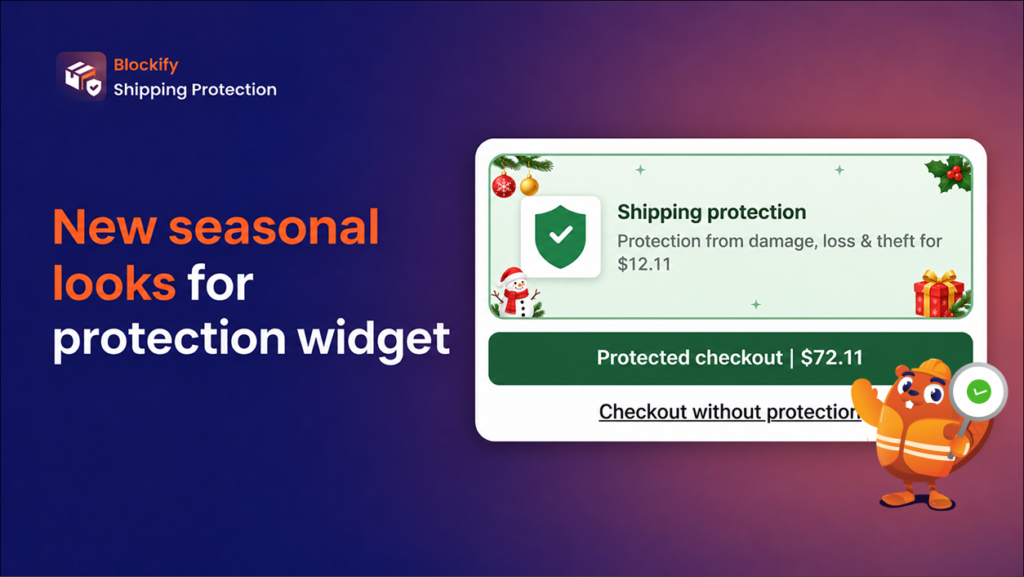
Black Friday and the holidays are almost here. Your homepage has a new banner, your product pages carry sale badges, and your emails are full of seasonal colors. Then a shopper opens the cart, and the shipping protection widget still looks like any other day of the year.
Blockify Shipping Protection now fixes that gap. The new Seasonal widget gives the shipping protection widget in your cart and cart drawer a festive look that matches your holiday campaign, so the last screen before checkout looks like the rest of your store.
Seasonal Shipping Protection Widget Now Live in Your Cart and Cart Drawer
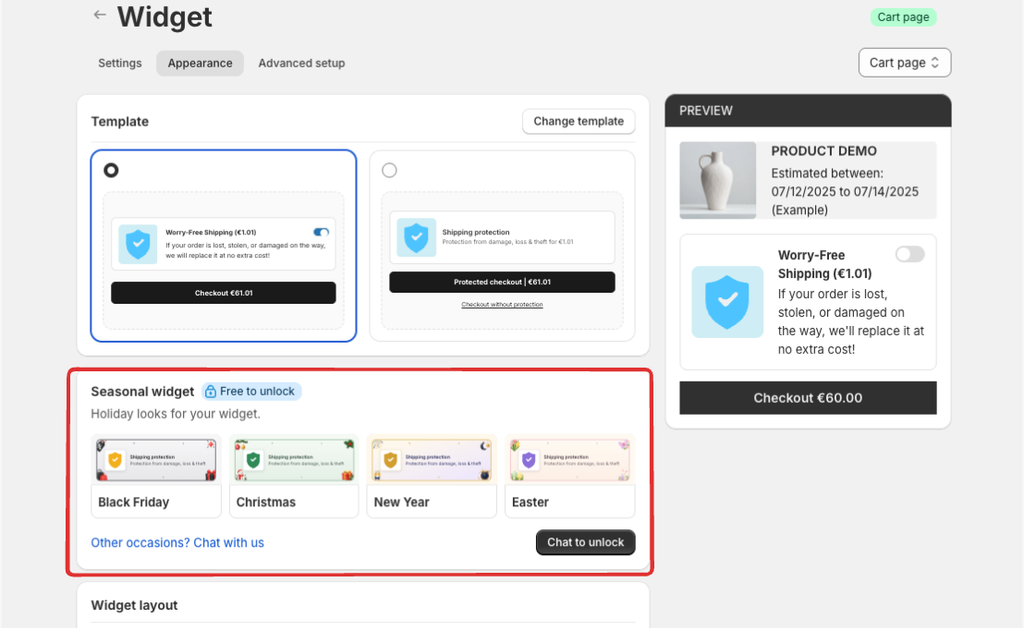
The Seasonal widget sits in Widget -> Appearance in the Blockify admin. You pick a holiday look, click Save, and the protection widget on your storefront changes to match. Nothing else about your setup moves.
- 4 holiday looks: Black Friday, Christmas, New Year and Easter.
- Switch anytime: move between looks as your campaigns change, or go back to No seasonal look (Default).
- Settings stay as they are: your widget configuration is kept when you switch looks or return to the default.
- Free: the Seasonal widget costs nothing. Our team turns it on for your store after a quick chat.
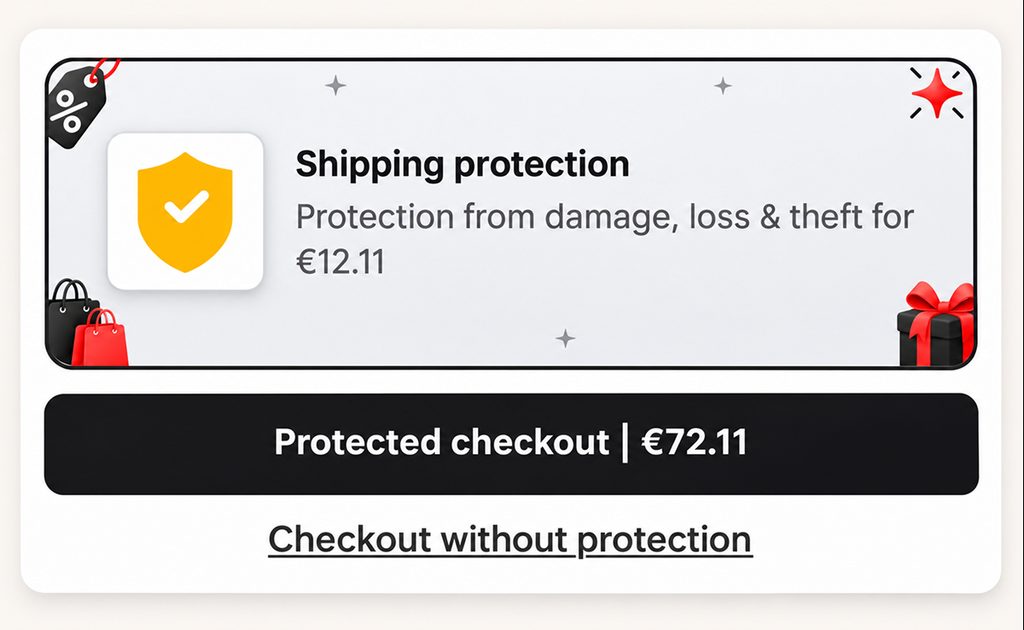
Why a Holiday Cart Widget Matters During Black Friday
The cart is where shoppers decide whether to add shipping protection. A widget that matches the season keeps that decision inside the same campaign experience.
- One consistent campaign: the cart matches your homepage, collection banners and holiday emails instead of breaking the theme at the last step.
- A widget that gets noticed: a seasonal look stands out in a busy cart drawer, so shoppers see the protection offer before they check out.
- No design work: the looks are ready to use, so you don’t need a designer or theme code changes during your busiest weeks.
- Easy to roll back: when the season ends, switch to the next holiday or back to the default in a few clicks.
How to Turn On the Seasonal Shipping Protection Widget
The feature is free but starts locked on every store. Our support team switches it on for you, then you choose the look yourself.
Quick setup (4 steps)
- In Blockify: Shipping Protection, go to Widget -> Appearance -> Seasonal widget.
- Click Chat to unlock. A live chat opens with a ready-made request, so you only need to send it.
- Once our team confirms the Seasonal widget is on, pick Black Friday, Christmas, New Year or Easter.
- Click Save. The new look appears on your storefront only after you save.
Switching looks or going back to default
Come back to the same card whenever your campaign changes. Pick a different look, or choose No seasonal look (Default), then click Save. Your other widget settings are not touched.
Start Using a Black Friday Shipping Protection Widget Today
Holiday shoppers notice when a store feels consistent from the first banner to the last click. The Seasonal widget brings that consistency to the cart, where the shipping protection offer is decided, without changing how your protection works or adding design work in your busiest weeks.
The Seasonal widget is live now in Blockify: Shipping Protection, free for every store. Give your cart a look for Black Friday, carry it through Christmas and New Year, and keep your shipping protection widget in step with every campaign that follows.
Dress your shipping protection widget for the holidays
Add Blockify: Shipping Protection to your Shopify store and match your cart to every seasonal campaign.
Install Blockify Shipping Protection