
Create Shopify Checkout Validation Rules with AI | Blockify

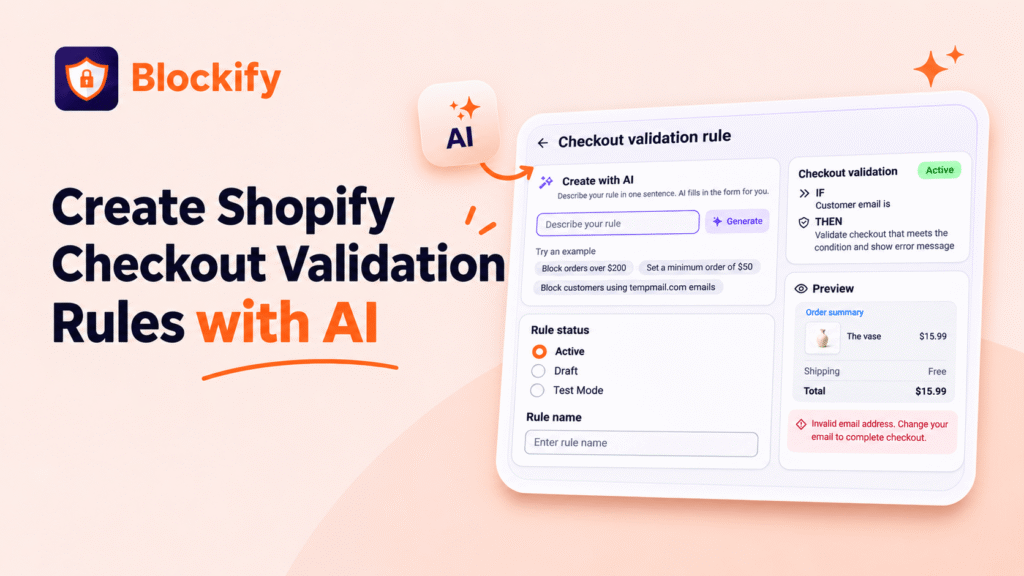
You already know the rule you want: block orders over $200, or stop shipping to two countries. Setting up a Shopify checkout validation rule still meant working through the setup screen. Which condition? Which trigger? Does it need AND or OR? Most merchants lose about ten minutes turning one clear sentence into the right set of dropdowns.
Blockify Checkout Rules now handles that translation for you. On the Checkout Validation rule page, a new Create with AI box turns a sentence in plain English into a ready-to-review rule. You describe it the way you would to a colleague, then spend your time checking the rule instead of configuring it.
Create with AI Now Builds Checkout Validation Rules from One Sentence
Type what you want, for example “Block orders over $200” or “Don’t ship to Nigeria or Ghana”, and click Generate. Blockify handles the setup and leaves the decisions that need your judgment to you.
- Condition and trigger picked for you: the AI selects the right condition and trigger based on your sentence.
- Conditions combined correctly: when a rule has more than one condition, the AI chooses how they combine.
- Rule named automatically: every generated rule gets a descriptive name, so your rule list stays readable.
- Lands in Test Mode: every generated rule starts in Test Mode, never Active.
- Available on every plan: Free, Basic, Premium and Plus.
Why AI Checkout Rules Stay in Test Mode Until You Approve Them
Two limits are built in on purpose: the AI never saves a rule for you, and it never switches a rule to Active. That restraint matters more than the AI itself.
- Checkout is where mistakes cost orders: a wrong validation rule blocks real customers from paying, so nothing goes live until a person reads it and decides.
- You own the customer-facing words: the error message shoppers see at checkout is written by you, not generated for you.
- Review time replaces setup time: the fiddly part (conditions, triggers, AND or OR) is done, so your attention goes to whether the rule is right.
- Fewer setup mistakes: describing intent in a sentence avoids picking the wrong dropdown combination by accident.
What You Do After the AI Generates Your Checkout Rule
After you click Generate, the rule form is filled in. Three things are left for you:
- The value, if your sentence didn’t include it: “Block orders over $200” already has a value. “Block large orders” does not, so you add the amount.
- The error message: the text customers read when the rule stops their checkout. Keep it clear and tell them what to change.
- A final review: check the condition, trigger and name the AI chose, then click Save.
Step-by-Step: Create a Shopify Checkout Validation Rule with AI
Quick setup (5 steps)
- In Blockify Checkout Rules, open the Checkout Validation rule creation page.
- In the Create with AI box, describe your rule in one sentence, such as “Block orders over $200”.
- Click Generate. The AI fills in the condition, trigger, how conditions combine and the rule name, and sets the rule to Test Mode.
- Add the value if your sentence didn’t include one, then write the error message customers will see.
- Review everything and click Save. When you’re confident in the rule, switch it to Active yourself.
Example sentences for common checkout validation rules
- Block orders over an amount: “Block orders over $200”.
- Block shipping to specific countries: “Don’t ship to Nigeria or Ghana”.
The more specific your sentence, the less you need to fill in afterward. Include the amount, country or other value you have in mind.
Start Creating Checkout Validation Rules with AI Today
Create with AI is live now on the Checkout Validation rule page in Blockify Checkout Rules. Describe the rule, review what the AI sets up, write your error message and save. The rule stays in Test Mode until you switch it to Active.
Build Your Next Checkout Rule in One Sentence
Describe it, review it, save it. Blockify Checkout Rules handles the setup on every plan, including Free.
Install Blockify Checkout Rules