Block VPN on Shopify with One IP Risk Score Scale

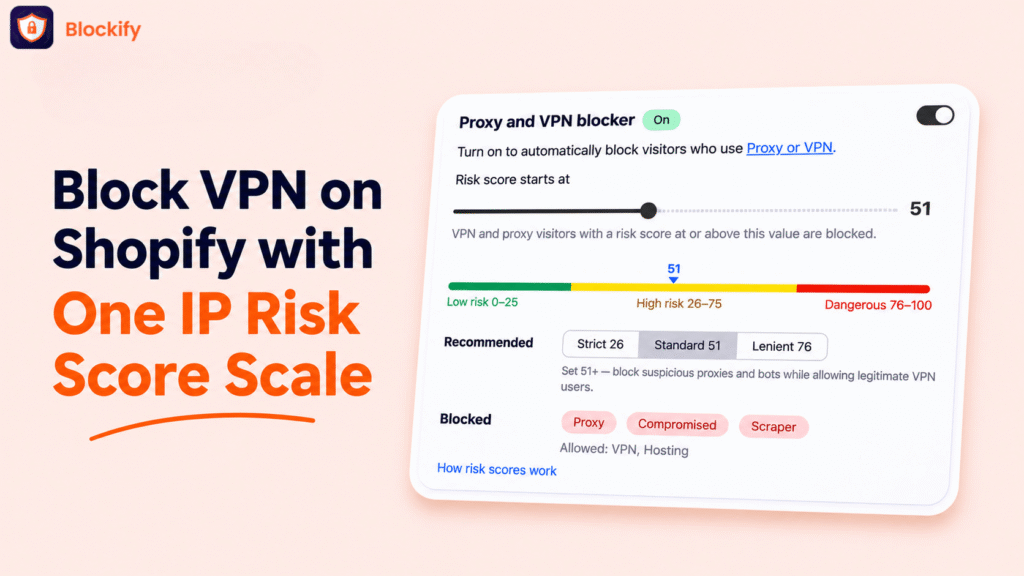
To block VPN on Shopify with confidence, you need to know what a risk score means. Until now, Blockify Analytics and the VPN settings used different scales. A visitor could show as High risk in Analytics and still be allowed by your Proxy and VPN blocker, which looked like a rule that wasn’t working.
Blockify Fraud Filter now uses one IP risk score scale everywhere: Low risk 0-25, High risk 26-75 and Dangerous 76-100. The same score gets the same name on every screen, and the Proxy and VPN blocker card now shows recommended thresholds and exactly which kinds of connection your setting blocks.
One IP Risk Score Scale Now Runs Across Analytics and Settings
Blockify gives each visitor’s IP address a score from 0 to 100. The higher the score, the more likely the visitor is hiding who they are or is a bot. The three levels now apply to:
- Analytics: risk badges, tooltips, the Risk level filter and the visitor counts.
- Orders: the IP Risk Score column in Order Analytics.
- Home: the “Total fraud visitors detected” card.
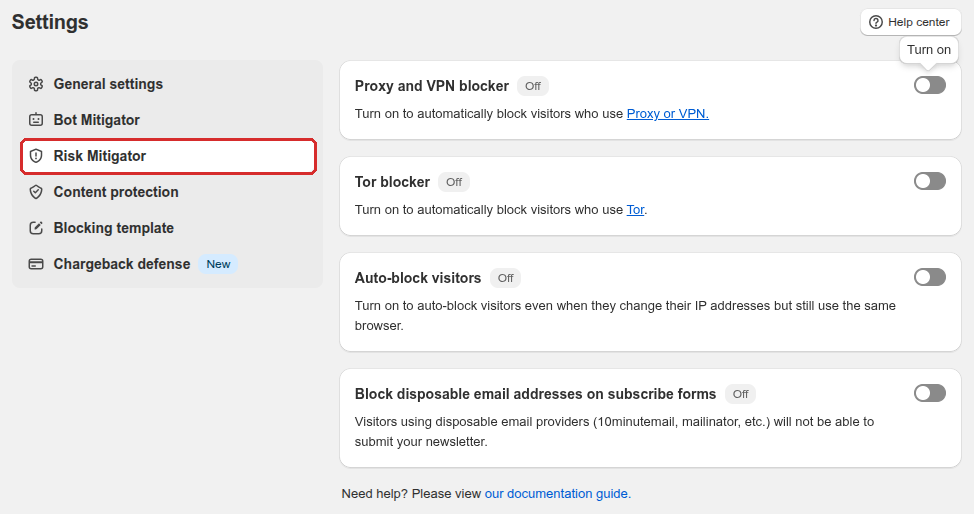
- Settings: the Proxy and VPN blocker card in Settings -> Risk Mitigator.
- Plans: scores and the Proxy and VPN blocker are available on Premium and above. On the Free plan, the score cell still shows “Needs upgrade”.
Why One Risk Scale Makes VPN Blocking Easier to Trust
Labels you can act on: High risk in Analytics means the same 26-75 range as High risk in your VPN settings, so you can match your threshold to what you see in your traffic.
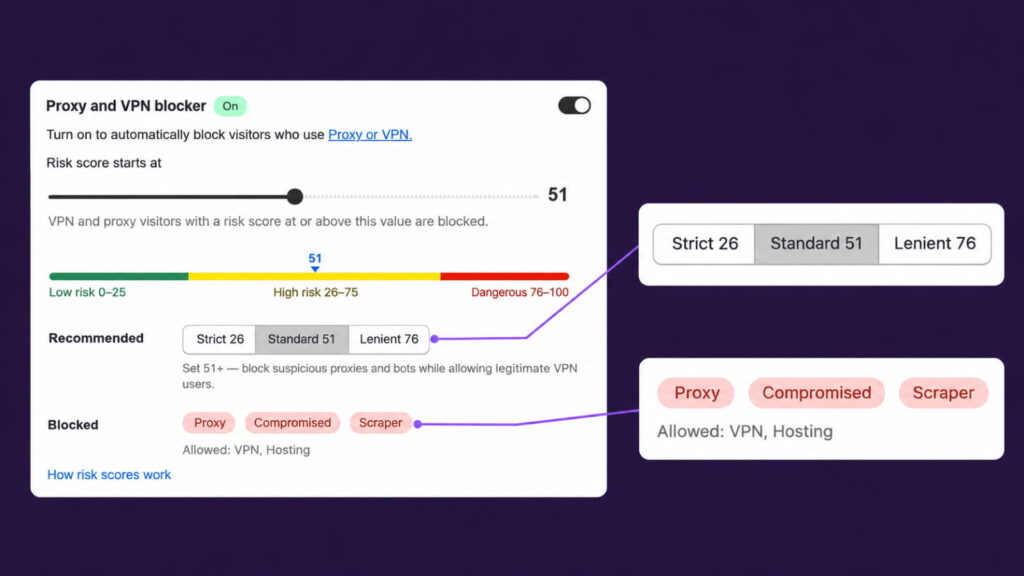
A starting point for every store: three presets cover the common setups, from stores with high chargebacks to stores where many real customers use a VPN.
No guessing what a number blocks: the Blocked row lists the connection types your threshold stops before you save.
Fewer real customers blocked by mistake: the app warns you when a threshold is low enough to catch shoppers who use a VPN for privacy or remote work.
IP Risk Score Levels and Recommended Thresholds
The three risk levels
- Low risk (0-25): real user behavior or a typical privacy VPN.
- High risk (26-75): some anomalies or bot-like behavior, worth monitoring.
- Dangerous (76-100): a suspicious proxy, a datacenter (a server, not a home or mobile connection) or a clear bot.
IPs without a score show “N/A” and don’t belong to any level.
The three Recommended presets
- Strict 26: blocks anything beyond real user behavior. Use it if your store has high chargebacks.
- Standard 51: blocks suspicious proxies and bots while letting legitimate VPN users through. This is the best starting point for most stores.
- Lenient 76: blocks only clear bots and datacenters. Use it if most of your customers use a VPN for legitimate reasons.
What each threshold blocks
Each kind of connection has a typical score: Proxy 100, Compromised 100, Scraper 75, VPN 50 and Hosting 33. The Blocked row lists every kind whose typical score is at or above your value. At Standard 51, for example, Proxy, Compromised and Scraper are blocked, while VPN and Hosting are allowed. The row is a guide, and each visitor is still judged by their own score.
Step-by-Step: Set Up the Shopify Proxy and VPN Blocker
Quick setup (6 steps)
- Go to Settings -> Risk Mitigator and turn on Proxy and VPN blocker. The new guidance appears once the card is on.
- Set Risk score starts at. Drag the slider or click a Recommended preset: Strict 26, Standard 51 or Lenient 76. Check the Blocked row to see what your value stops.
- Next to Apply to, choose All countries or Selected countries. If you pick Selected countries, add at least one country.
- Next to Action, choose Block to show your blocking page or Redirect to send the visitor to a URL you enter.
- Optional: under Exceptions, tick Allow iCloud Private Relay to let Safari users on Apple’s relay service through.
- Click Save.
For every setting in detail, see the Proxy and VPN blocker setup guide.
What Changes for Your Existing Threshold and Analytics Data
- Your saved threshold stays the same: the update doesn’t change it. If you never changed it, it is still 66.
- The lit preset can differ from your value: the app lights the highest preset at or below your value. At 66, Standard 51 is lit, but your real threshold is still 66.
- Analytics counts shift, including past dates: IPs scored 26-34 move from Low to High risk, and IPs scored 67-75 move from Dangerous to High risk. If you see more High risk IPs and fewer Dangerous ones, the scale changed, not your traffic.
- No change for shoppers: VPN and proxy visitors are blocked when their score is at or above your threshold, exactly as before.
Block VPN on Shopify with the New Risk Scale Today
The new scale is live now. Analytics, Order Analytics and the Home card update on their own, with nothing for you to set up. To review your VPN threshold, open Settings -> Risk Mitigator -> Proxy and VPN blocker and compare your value with the three presets.
Stop Proxy and VPN Fraud at the Right Threshold
One clear risk scale, three presets and a live list of what you block. Proxy and VPN blocking is included on Premium and above.
Install Blockify Fraud Filter