
Post-Purchase Upsell for Shopify | Blockify Checkout Rules

Every Shopify merchant knows the delicate balance of maximizing revenue without disrupting checkout conversion. Adding popups, cross-sells, or extra confirmation steps to the checkout funnel often causes hesitation, cart abandonment, and lost sales. Store owners are frequently forced to choose between protecting their baseline conversion rate and growing their average order value (AOV).
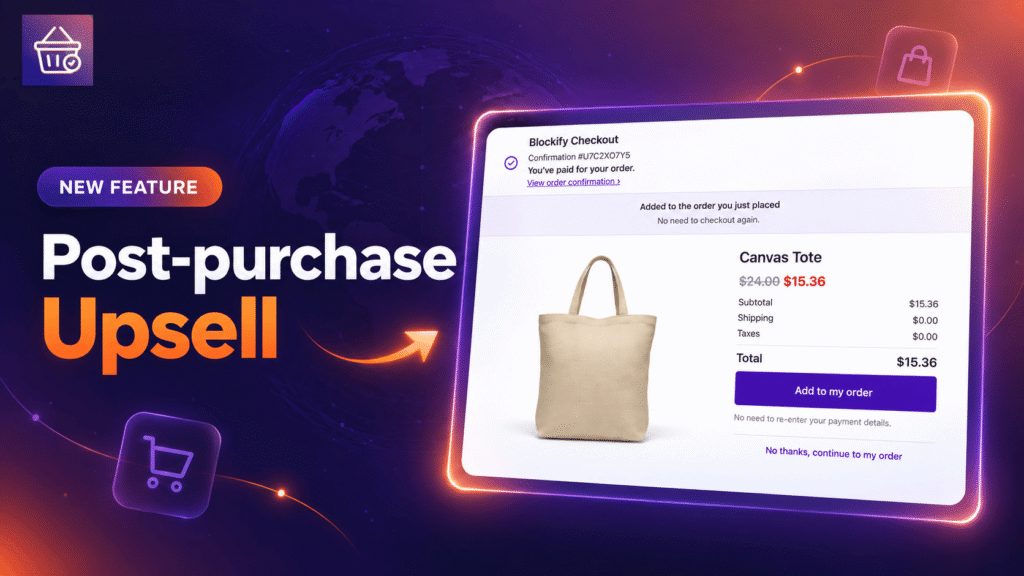
Blockify Checkout solves this friction with the release of Post-Purchase Upsell. Now, the customer journey continues smoothly right after payment is processed and before the Thank You page loads. Because the initial purchase is already complete, you can present high-intent customers with complementary add-ons without adding friction to the primary checkout flow.
Post-Purchase Upsell Architecture: How Frictionless Add-Ons Work
Blockify’s post-purchase framework inserts a dedicated offer page into the native post-payment flow. Customers evaluate the offer after their initial transaction succeeds, ensuring zero risk to your primary conversion funnel.
- Frictionless One-Click Add: When a buyer accepts the post-purchase deal, the item is added directly to the existing order. The customer does not undergo a second checkout, nor do they need to re-enter their payment details. The saved card on file is simply charged the price difference.
- Friction-Free Decline: If the customer is not interested, they select the decline option and continue straight to the standard Thank You page. Their original purchase remains unaffected.
- Flexible Discounting: Merchants can configure promotional pricing with either a percentage discount, a fixed dollar amount off, or full retail price.
- Targeted Trigger Rules: Instead of showing generic products to every buyer, you can set display conditions based on specific products in the cart, minimum order value thresholds, customer tags, or delivery countries.
- Fully Customizable Copy: The interface allows you to adapt product display titles, pricing copy, and call-to-action buttons (Accept / Decline) to match your brand tone.
- Real-Time Responsive Preview: Verify desktop and mobile layouts directly within the app admin before pushing any offer live to customers.
Why Post-Purchase Offers Are Essential for Shopify Revenue Growth
Timing and buyer psychology dictate the success of any upsell strategy. Post-purchase promotions capture buyers at peak purchase momentum – the exact moment they have committed their money and trust to your brand.
- Higher Average Order Value with Zero Abandonment Risk: Because the initial transaction has already been authorized and captured, presenting an additional product cannot derail the original sale. You capitalize on immediate purchase intent with 100% safety for baseline conversions.
- Elimination of Payment Friction: Forcing a buyer to pull out their credit card twice drops repeat purchase rates dramatically. By billing the price difference to the active card on file in a single click, Blockify removes the biggest barrier to spontaneous add-on purchases.
- Relevant, Context-Aware Merchandising: Relevancy drives conversion. Showing a screen protector immediately after a customer buys a phone case, or offering a complementary care kit for a high-value order, provides practical value that feels tailored rather than intrusive.
How to Set Up Post-Purchase Upsell in Blockify Checkout
Setting up your first post-purchase promotion takes only a few minutes. Before creating specific offers, you must ensure Blockify is designated as your store’s post-purchase provider in Shopify Settings.
Step 1: Assign Blockify as Your Post-Purchase App
Shopify architecture permits exactly one active post-purchase app per store at any time.
- In your Shopify admin, navigate to Settings → Checkout.
- Scroll down to the Post-purchase page section.
- Select Blockify Checkout as the designated post-purchase application and save.
Step 2: Build and Launch Your Post-Purchase Offer
Once the global app setting is enabled, configure your targeted offer rules directly inside the Blockify dashboard.
- Open Blockify Checkout and click Post-Purchase Upsell from the left-hand navigation menu.
- Click Create offer.
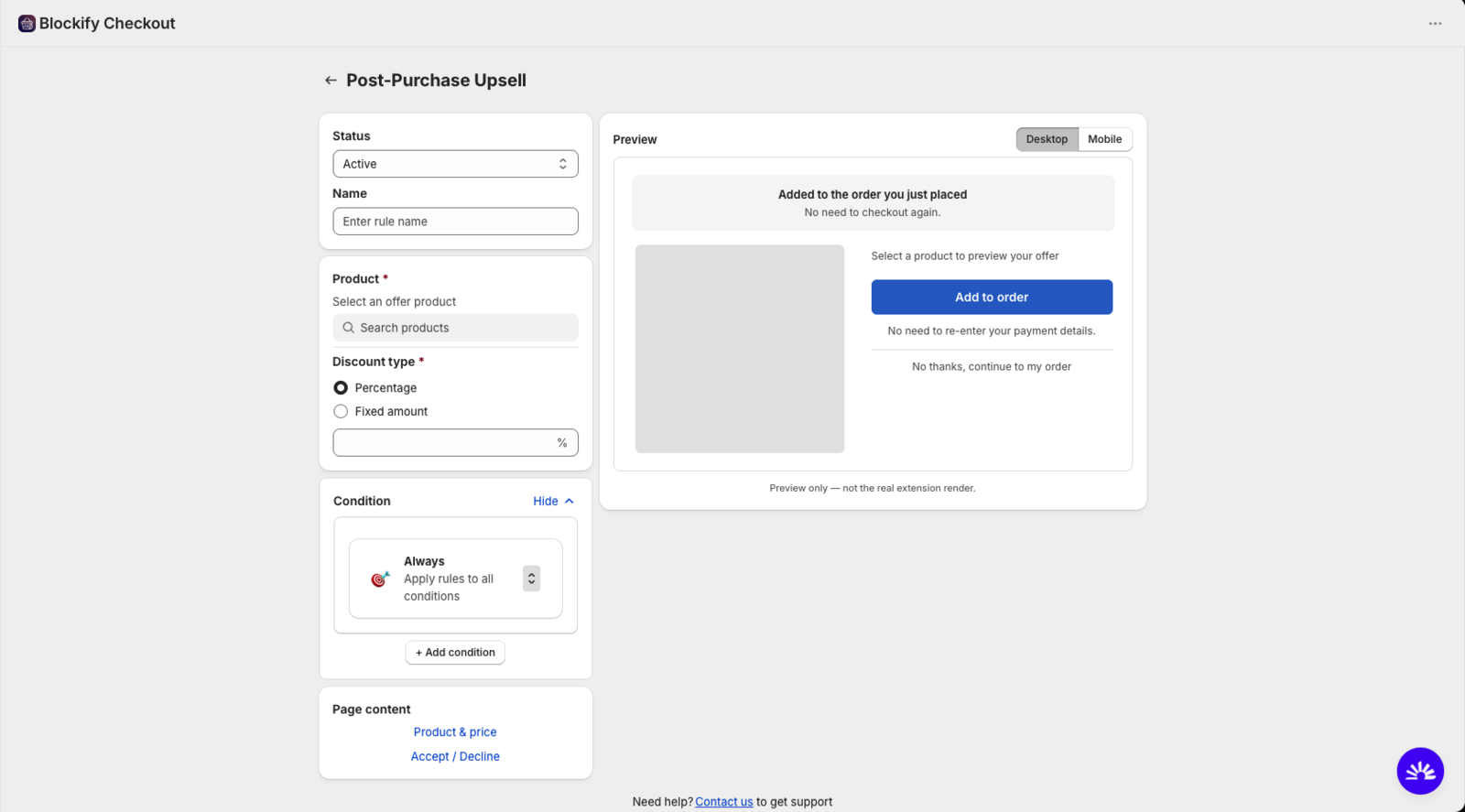
- Toggle the Status to Active and input an internal Name for organizational tracking (this name is never displayed to shoppers).
- Under Product, search for and select the item you want to offer as an add-on.
- Choose your Discount type (Percentage or Fixed amount) and enter the value, or leave it blank to offer the item at full price (a 10%–20% discount is typically recommended for complementary add-ons).
- Configure the Condition:
- Keep Always to display the offer across all qualifying orders.
- Click + Add condition to narrow eligibility by specific products, order value, customer tag, or destination country.
- Under Page content, adjust the product title, pricing text, and Accept/Decline button labels as needed.
- Review the layout using the Preview panel (switch between Desktop and Mobile views) and click Save. Your offer will immediately begin displaying on qualifying checkouts.
Technical Requirements and Shopify Limitations
To ensure a smooth rollout, store managers should keep Shopify’s platform-level technical boundaries in mind when auditing post-purchase behavior.
Payment Method Eligibility: In accordance with native Shopify platform rules, the post-purchase page only triggers on orders paid directly via credit card. Orders processed through Cash on Delivery (COD), third-party digital wallets (Apple Pay, Google Pay, Shop Pay), PayPal, or gift cards will bypass the post-purchase step and navigate straight to the Thank You page.
Single Active Post-Purchase App Rule: Shopify allows only one app to manage post-checkout pages. If another app is currently handling this step, you must reassign it to Blockify Checkout in your Shopify admin settings.
Single Offer per Order: Customers are shown a maximum of one offer per order. While you can build multiple campaigns with varying criteria, Blockify evaluates your rules and presents the single best-matching offer for each transaction.
Claim Early Access Today
Post-Purchase Upsell is currently available across all Blockify plans through our limited-time Early Access window. Any post-purchase offers created and configured during this Early Access phase will continue running without interruption once plan-specific tiers are introduced.
Explore the feature today inside your Blockify dashboard, or install Blockify Checkout Rules to start driving incremental revenue on every completed order.
Need assistance with targeting conditions or configuration? Contact our team anytime through live chat in the app dashboard or reply directly to our support communications.
