
Credit Card Decline Codes: What They Mean and What to Do Next

Credit Card Decline Codes tell merchants why a card payment failed and, more importantly, what to do next. Some problems can be fixed at checkout. Others require a different card or a call to the issuer. A sudden wave of mixed declines may point to card testing rather than ordinary customer error.
The code is only a starting point. Read it with the processor’s advice, the customer’s checkout behavior, and the wider payment pattern before deciding whether to retry, ask for new details, or investigate fraud.
What does a credit card decline code tell you?
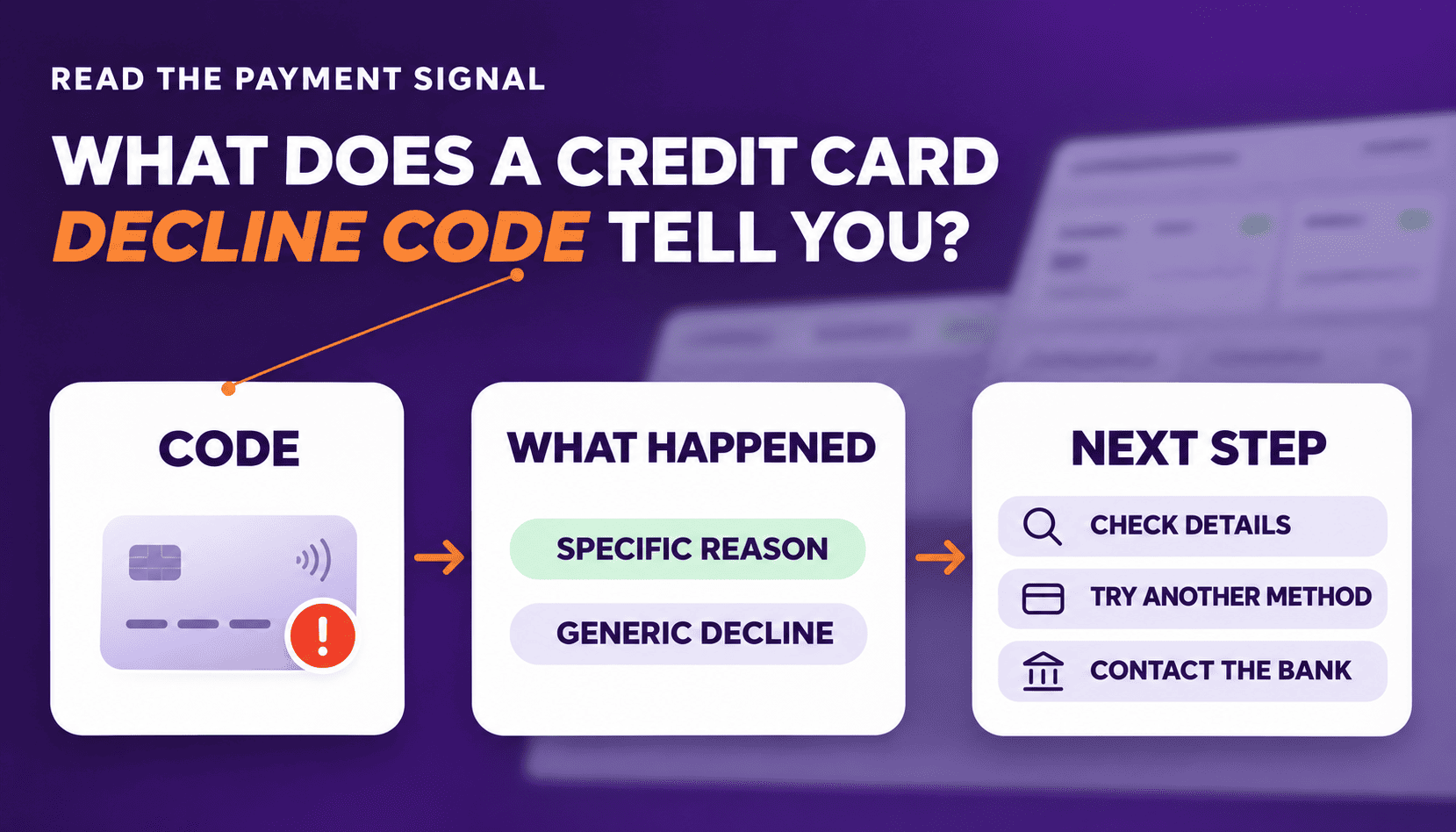
When a customer submits a card payment, the request moves through the payment processor and card network to the bank that issued the card. The issuer checks the account, available funds, card status, payment details, and risk signals. It then approves or declines the authorization.
If the payment is declined, a short response travels back through the payment chain. That response may come from the issuer, network, processor, or a fraud rule. It can be a number such as 05 or a plain-language label such as do_not_honor, incorrect_cvc, or generic_decline.
There is no single codebook that looks identical in every dashboard. Stripe explains that network codes can mean different things across card brands, while payment providers often translate them into their own labels. Use the table below as a practical reference, then follow the exact advice shown by your processor.
Merchants often call a decline hard or soft. A hard decline is unlikely to work again with the same card, as with a lost, stolen, or restricted card. A soft decline may be temporary or correctable, as with a wrong CVC, required authentication, or an unavailable issuer. Even then, do not retry automatically unless the provider says it is allowed.
Common Credit Card Decline Codes and the right next step
The most useful way to read card decline codes is by action, not by memorizing every number. Codes also vary by card network and processor, so check your provider’s documentation before building an automated response.
| Code | Usually means | What the merchant should do |
|---|---|---|
| 01 / 02 | Refer to issuer | Ask the customer to contact the bank or use another payment method. |
| 03 | Invalid merchant | Check the merchant account and processor configuration. |
| 05 | Do not honor | Ask the customer to contact the issuer or use another method. Do not guess at the cause. |
| 06 | Processing error | Check whether a payment was created, then retry once only if the provider allows it. |
| 12 | Invalid transaction | Check the transaction type, payment method, and gateway settings. |
| 13 | Invalid amount | Confirm the amount, currency, decimal format, and provider limits. |
| 14 | Invalid card or account number | Ask the customer to re-enter the number or use another card. |
| 19 | Re-enter transaction | Confirm the first attempt failed before retrying. |
| 41 / 43 | Lost or stolen card | Do not retry. Show a generic decline and request another method. |
| 51 | Insufficient funds | Ask for another payment method rather than retrying immediately. |
| 54 | Expired card | Ask the customer to update the expiry date or use another card. |
| 57 | Transaction not permitted | The cardholder should contact the issuer or use another method. |
| 59 | Suspected fraud | Stop automatic retries and keep the customer-facing message neutral. |
| 61 | Amount limit exceeded | Ask the customer to contact the bank or use another method. Do not split the charge to avoid the limit. |
| 62 / 63 | Restricted card or security violation | Stop retrying and follow the processor’s security guidance. |
| 65 | Visa: Withdrawal frequency limit exceeded. Mastercard: Authentication required (SCA soft decline). | Visa: Ask the customer to wait or contact the issuer. Mastercard: Run 3D Secure authentication and retry the payment. |
| 82 / 97 / N7 | N7 (Visa) / 82 (Visa) | CVV verification failed | Ask the customer to re-enter the security code or use another card. |
| 91 / 92 | Issuer unavailable or routing failed | Verify payment status and retry later only if the provider allows it. |
| 96 | System malfunction | Check provider status and transaction logs before trying again. |
| 1A | Authentication required | Start or repeat the supported 3D Secure flow. |
Codes such as 41, 43, and 59 contain sensitive risk information. Keep the customer-facing message neutral. Adyen’s guidance, for example, advises merchants not to expose detailed refusal reasons to shoppers to prevent misuse. Specific feedback such as ‘wrong CVC’ tells a card tester exactly which detail to change next.
How to respond without losing a legitimate order
A decline can end a sale, but a blind retry can create more risk. The response should match the reason.
- Fix correctable details first: If the number, expiry date, CVC, or billing postal code is wrong, point the customer to that field and keep the cart intact so they can try again without starting over.
- Follow the retry advice: Temporary issuer or network errors may succeed later. Lost, stolen, restricted, revoked, and do-not-try-again responses should not be resubmitted. Stripe recommends limiting retries even when they are allowed because repeated attempts can look suspicious.
- Offer another way to pay: A different card or a suitable alternative payment method is often the fastest answer for insufficient funds, expired cards, issuer restrictions, or repeated generic declines.
- Use a safe message: Tell the customer what they can do next without revealing an internal fraud score or the exact rule that stopped the payment. For example: “We couldn’t complete this payment. Check your card details, try another payment method, or contact your bank for help.”
If many legitimate customers and payment methods fail at once, stop treating the issue as a series of individual card problems. Check the provider’s status page and recent payment-setting changes, then contact support with timestamps and request IDs.
Where to find card decline codes in Shopify
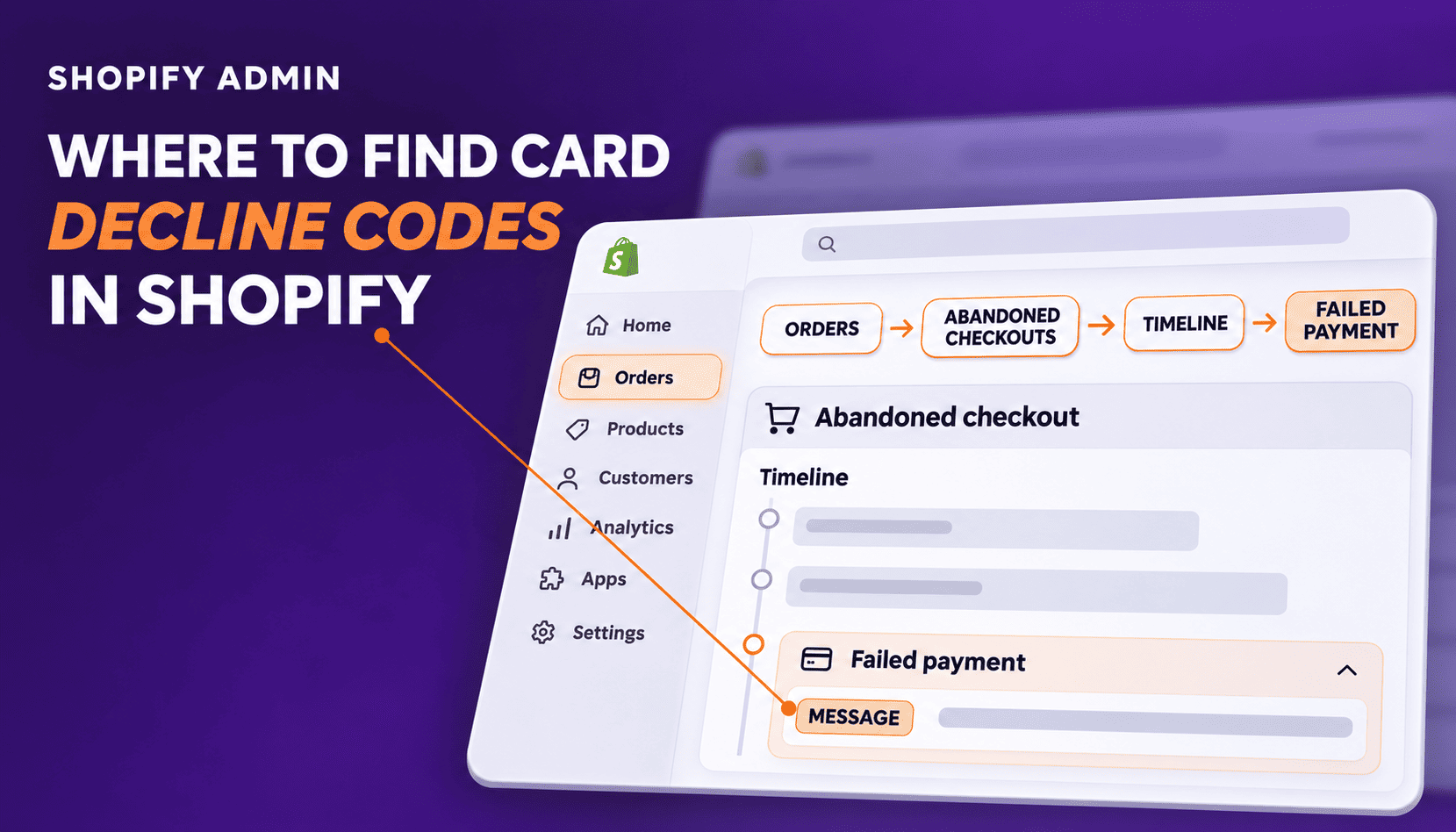
A failed card payment usually does not create an order. In Shopify Admin, go to Orders > Abandoned checkouts, open the checkout, expand the failed payment event in the Timeline, and read the Message field. Shopify displays the information returned by the bank, although many issuers provide only a generic decline.
An abandoned checkout appears only after it has been incomplete for more than ten minutes. Shopify also filters some suspected card-testing and bot attempts out of the abandoned checkout list. If a checkout is missing or the message is vague, check the payment provider’s dashboard and transaction logs as well.
Save the payment or request ID, time, amount, response, and checkout reference. Those details are more useful to a support team than a screenshot of “card declined” by itself.
When a spike in card decline codes suggests card testing
One declined payment is usually a customer or issuer problem. Dozens of different cards failing through nearly identical checkouts in a short period can be a security problem.
Card testing happens when attackers use automated scripts to submit stolen card details and identify which cards still work. Most attempts fail, so an attack can produce a mix of invalid numbers, wrong CVCs, expired cards, generic declines, and suspected-fraud responses.
No single code proves card testing. Look for several signals happening together:
- many cards attempted within minutes or hours;
- repeated low-value or zero-value checkouts;
- the same email, name, phone number, or shipping address used with different cards;
- checkout attempts that do not match normal browsing behavior;
- a sudden rise in failures from similar IPs, locations, devices, or user agents; or
- small successful charges followed by disputes or unauthorized-payment reports.
Shopify warns that card testing can create many declines, some completed orders, later chargebacks, and a higher decline rate for real customers. Cards that pass a test are often used next for card-not-present fraud, where the fraudulent order is shipped and later disputed. When the pattern appears, contact the payment provider, tighten available fraud controls, review successful orders before fulfillment, and preserve the logs.
How Blockify helps stop card-testing bots before authorization
Decline codes explain what happened after a payment was submitted. They do not stop a bot from opening checkout and testing the next card. Blockify Fraud Filter adds controls earlier in the journey, where the repeated behavior is easier to interrupt.
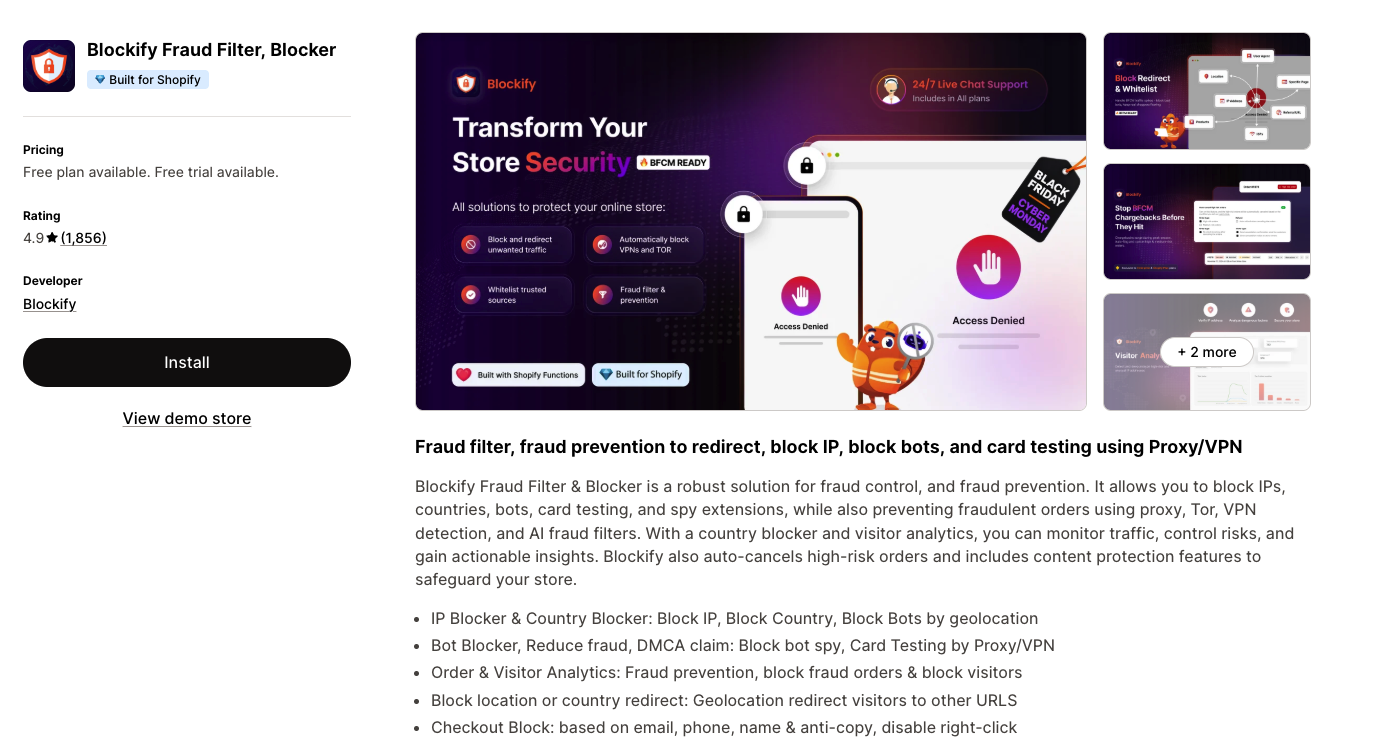
Blockify focuses on several patterns that often appear during card testing:
- Stop direct-to-checkout bots: Some scripts skip the storefront and open a checkout link directly. Blockify’s direct-checkout protection can stop a checkout that did not begin from the store from becoming an order. The feature is currently early access, must be enabled by the Blockify team, and may need extra setup for Shopify POS, the Shop app, or Shop Pay.
- Limit repeated checkout details: Merchants can count how often the same email, shipping address, phone number, or name appears within 60 minutes, then block attempts above the chosen limit. This feature is currently available on Enterprise and Shopify Plus plans. The threshold needs care because a genuine guest may retry after a wrong CVC or failed 3D Secure check.
- Add traffic and checkout rules: Merchants can review patterns involving IP, country, ISP, referrer, user agent, VPN or Tor use, repeated low-value behavior, and other supported conditions. These are risk signals, not proof that every matched visitor is fraudulent, so narrow rules are safer than blanket blocks. Merchants can also block $0-subtotal checkouts that also show bot-style name patterns (for example, a first and last name that match) and disposable email addresses, while storefront bot and user-agent rules can restrict harmful automation without blocking trusted crawlers on the Allowed bot list.
Blockify does not replace Shopify Payments protection, the payment provider’s fraud tools, AVS and CVC checks, 3D Secure, or order review. Its value is that it can reduce the automated checkout behavior that creates the flood of decline codes in the first place. Blockify’s card-testing guide explains how these layers work together.
Reduce avoidable declines without weakening fraud controls
The goal is not to approve every payment. It is to remove preventable friction for real customers without making checkout easier to abuse.
- Validate details before submission: Catch incomplete card numbers, impossible expiry dates, and badly formatted postal codes before sending an authorization request.
- Support authentication clearly: When the issuer requests 3D Secure, tell the customer that their bank needs to confirm the payment and let them restart the authentication flow if it closes or times out.
- Review declines by segment: Compare codes by card brand, issuer country, payment method, device, and time. A problem in one market may be a currency or cross-border restriction; a sharp burst across many cards may be an attack.
- Watch for false positives: A country mismatch, VPN, or repeated attempt can be legitimate. Monitor customer complaints after changing a rule and reserve the strictest action for patterns supported by several signals.
Final thoughts
Credit Card Decline Codes are useful only when they lead to the right decision. Correct the details when the problem is fixable, stop when the issuer says not to retry, and investigate when many cards fail through the same checkout pattern. That approach gives legitimate customers a clear way forward without giving card-testing bots unlimited attempts.
