We’re excited to share that Blockify now integrates with Shopify Flow!
This integration lets you automate your fraud prevention workflow using real-time events from Blockify – such as “Order Blocked” or “Order Needs Review.”
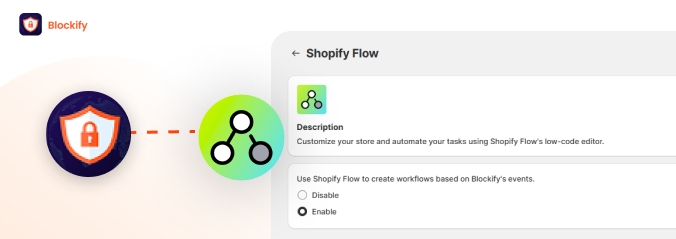
This is more than just a connection – it’s a complete automation upgrade for your fraud management strategy. Blockify provides the data (triggers), and Shopify Flow provides the intelligence (actions).
You can now automate critical processes based on real-time Blockify events like “Order Blocked,” “Order Needs Review,” or even specific Blockify data points like a customizable riskScore.
Here are some powerful workflows you can build immediately:
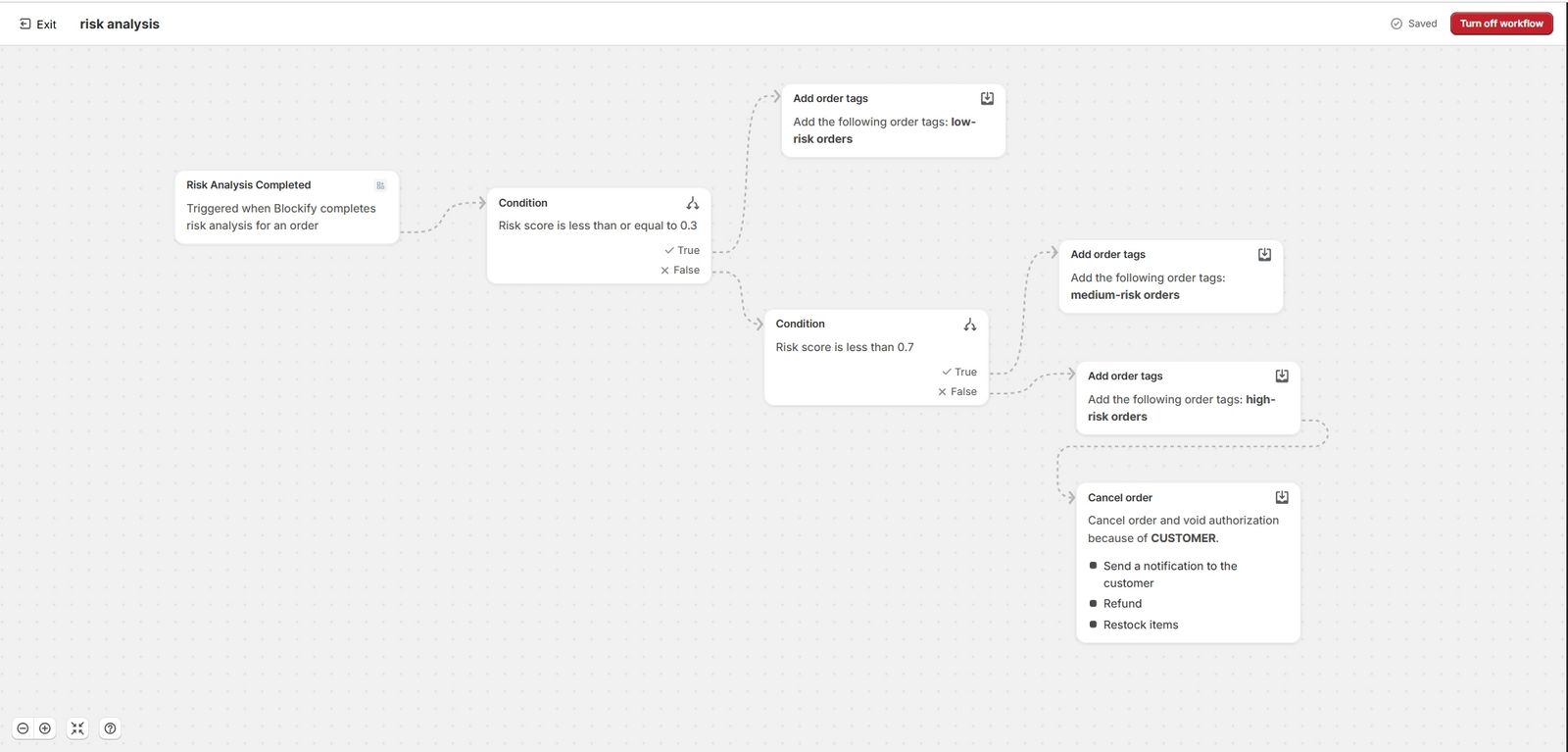
With these automations, you’ll drastically reduce manual work, increase team efficiency, and keep your store safer, especially during high-traffic seasons like BFCM.
Setting up the integration is a quick, two-step process:
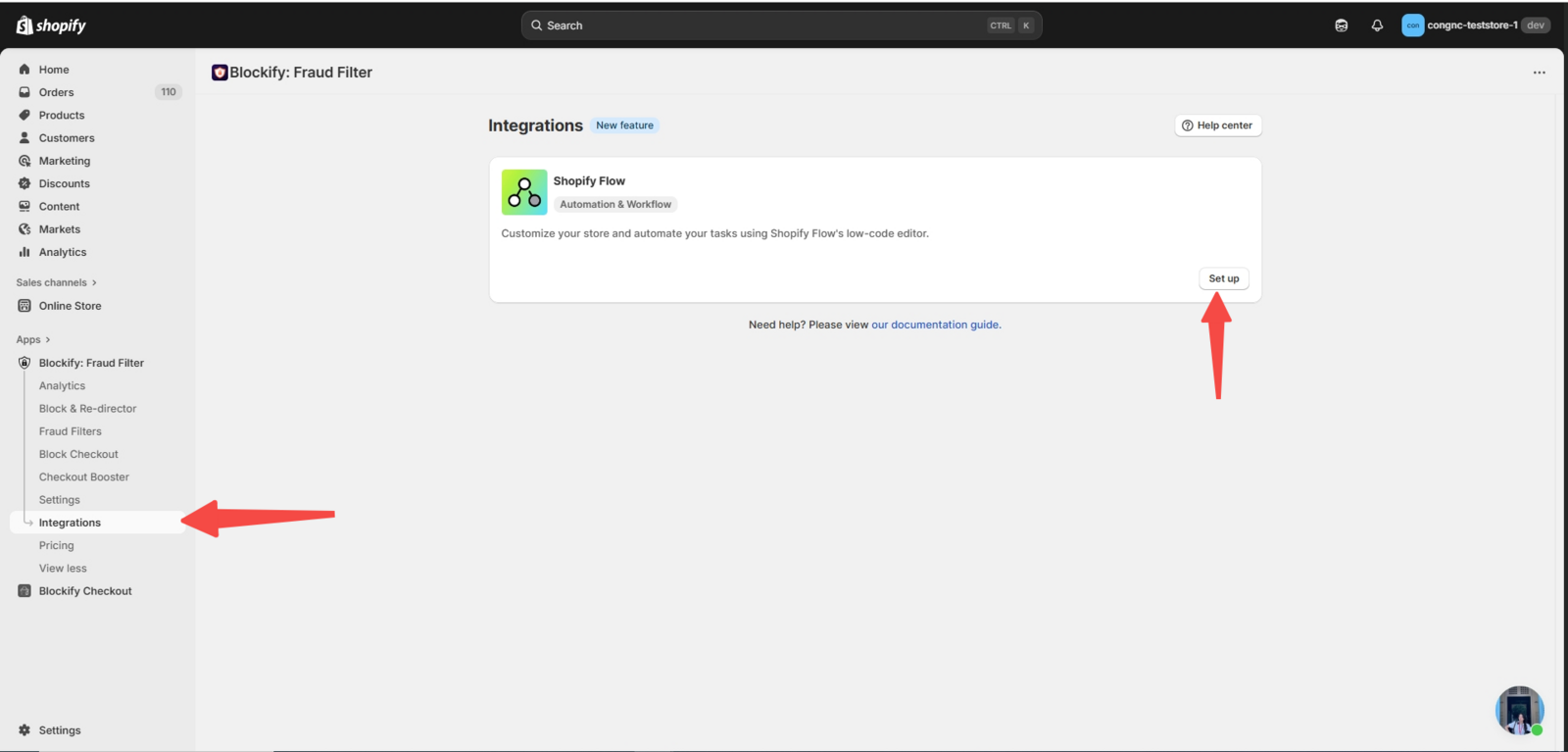
Step 1: Enable Shopify Flow in Blockify Fraud Filter
From your Shopify admin, open the Blockify app, click the Integrations tab, and click Set up in the Shopify Flow section.
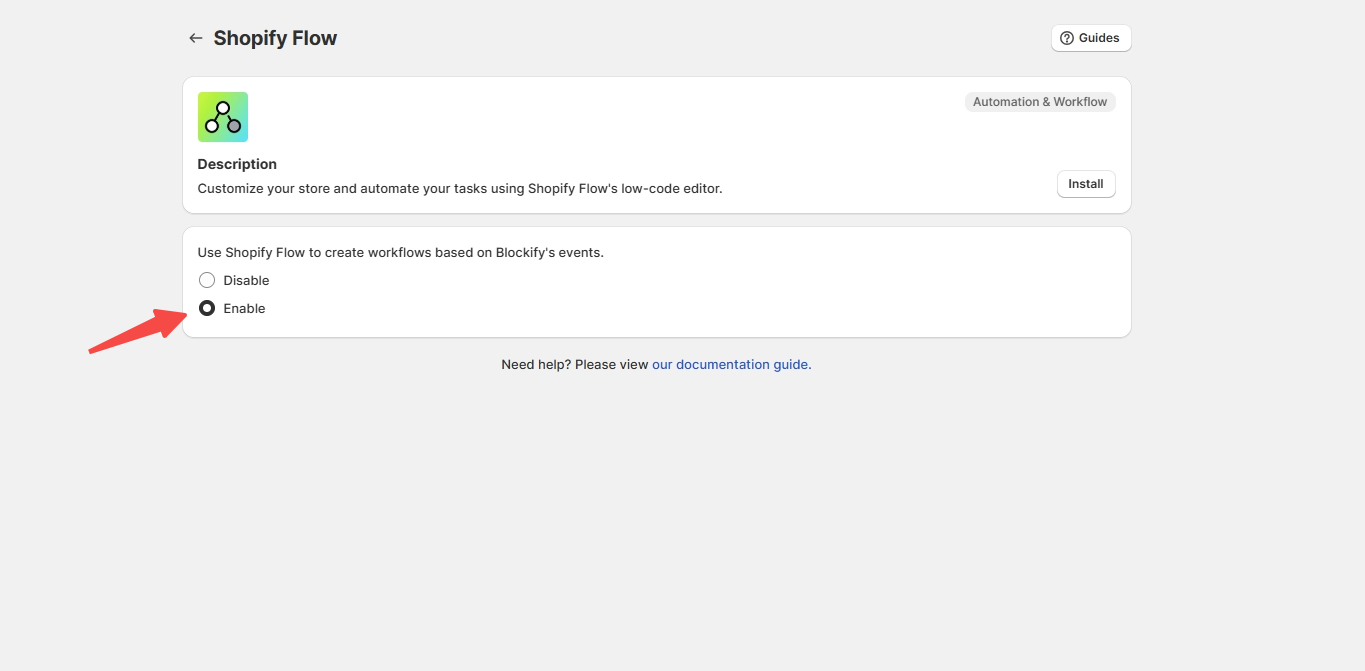
To proceed, please install Shopify Flow by clicking the “Install” button.
Choose “Enable” to Use Shopify Flow to create workflows based on Blockify’s events.
Step 2: Set up your flow
Go to your Shopify Flow app, click “Create workflow,” and choose Blockify’s triggers like “Risk Analysis Completed,” “Order Blocked,” or “Order Flagged for Review” to start building your custom automation.

For a detailed walkthrough, including specific examples and available triggers, be sure to take a look at our official documentation here for some pro tips to get you started.
Need help designing your first automation? Just reply to this post or contact our team – we can help you set up an effective flow in minutes.