
Blockify Checkout Rules Update: Target Your Free Shipping Bar for Higher AOV

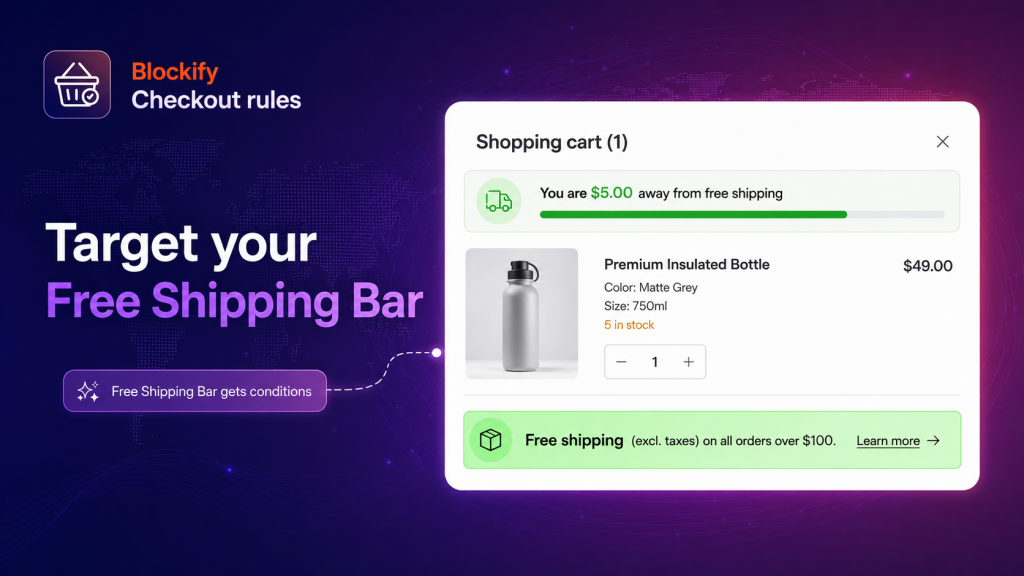
Every Shopify Plus merchant knows the power of a Free Shipping Bar at checkout. It’s one of the most effective psychological nudges to increase Average Order Value (AOV). Customers want to cross that finish line, and showing them exactly how close they are to free shipping drives them to add one more item to their cart.
But until today, a checkout free shipping bar was a blunt instrument: it was either on for everyone, or off for everyone.
Showing a shipping nudge to a VIP customer who already gets free shipping? Irrelevant.
Showing a USD threshold bar to a customer checking out from Australia? Confusing.
Showing a progress bar to someone who has already unlocked the reward? Wasted space.
Today, we are changing that. We are thrilled to introduce Targeted Conditions for the Blockify Free Shipping Bar.
Now, you can ensure your free shipping bar only appears when, where, and to whom it actually moves the needle.
What’s New?
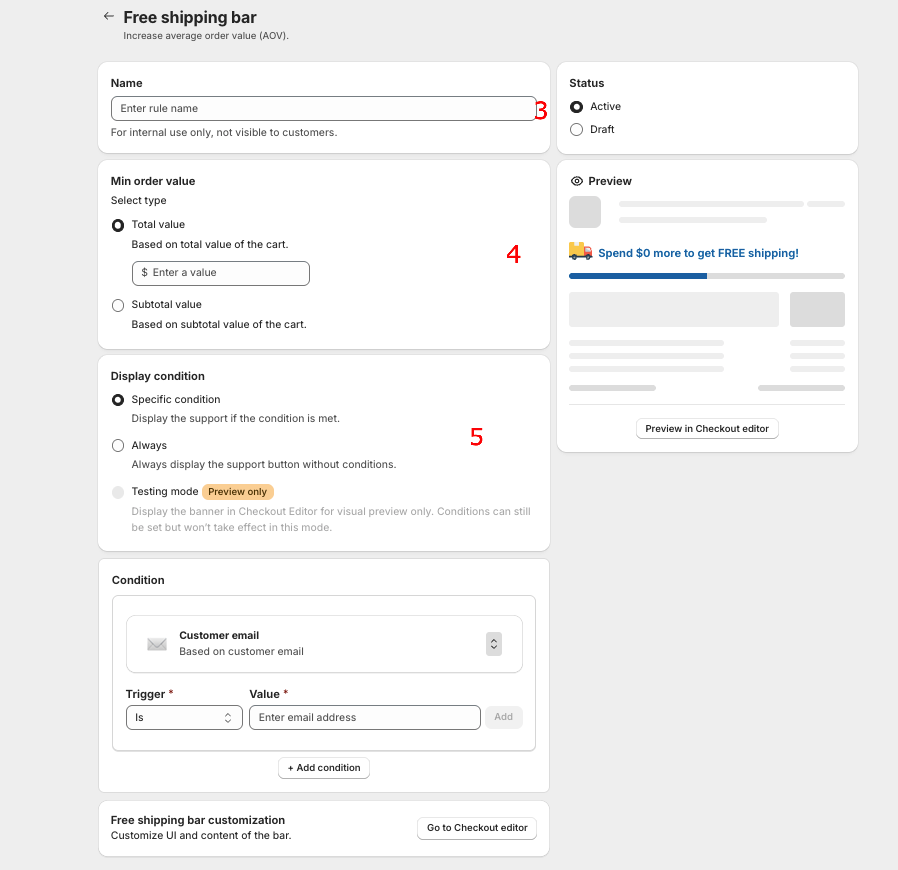
You can now control the visibility of your Free Shipping Bar. Instead of showing the bar to “Always,” you can switch to Specific Conditions to target by:
- Customer Segment: Hide the bar from wholesale or VIP segments who already receive automated free shipping, or target it exclusively to new buyers.
- Country/Market: Only display the bar in regions where your free shipping offer is actually valid. No more confusing cross-border shoppers.
- Cart Total & Contents: Show the nudge only when the cart is below your free-shipping threshold to drive that extra upsell, or limit it to carts containing specific products.
Why This Matters for Your Bottom Line
Sharper Messaging, Higher Conversion: By removing irrelevant offers, your checkout remains clean, focused, and personalized. When a customer sees a message tailored to their specific cart and region, they are much more likely to convert.
Protect Your Margins: Stop accidentally promoting domestic free shipping thresholds to international buyers where shipping costs would eat your entire margin.
Zero Learning Curve: If you’ve ever set up a condition for a Trust Badge or Custom Banner in Blockify, you already know how to use this. It uses the exact same AND/OR logic panel you’re familiar with.
How to Set It Up (Step-by-Step)
Note: The Free Shipping Bar and this conditional update are exclusively available for Shopify Plus brands utilizing Shopify Checkout Extensibility.
Prerequisite: Make sure you have your Free Shipping discount created either natively in Shopify Admin or via the Shipping Rule > Shipping Discount section in Blockify Checkout Rules.
- Navigate: Open the Blockify app, go to the Checkout Component tab, click Create Component, and select Free Shipping Bar.
- Name & Threshold: Give your bar an internal name and input the
Min Order Valuerequired to unlock the discount. - Set the Trigger: Under visibility, change the setting from Always to Specific condition.
- Build Your Logic: Click Add condition. Here you can mix and match rules (e.g., Country equals United States AND Cart Total is less than $100).
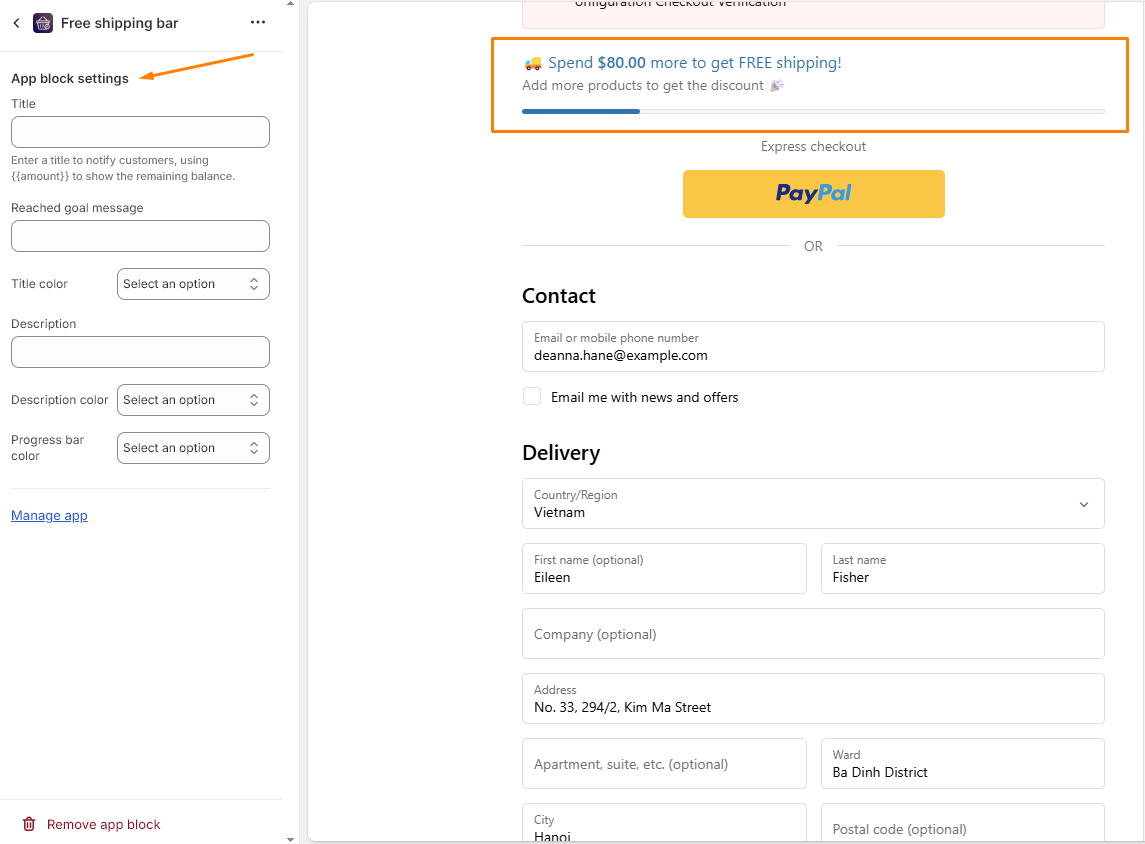
- Design in Checkout: Save your condition, click Go to Checkout Editor, drag the Blockify Free Shipping Bar into your layout, style your progress bar, and write your custom congratulatory message.
🚀 And you’re live! Your checkout will now dynamically show or hide the bar based on real-time cart data.
You can check the document here.
Ready to sharpen your checkout strategy?
Targeted messaging is the key to maximizing checkout real estate. Head over to your Blockify dashboard today to add conditions to your Free Shipping Bar and start driving higher, more profitable AOVs.
Set your Free Shipping Bar conditions
Blockify Checkout Rules gives you powerful, hyper-targeted checkout customizations — and a support team that stays with you until it’s right, right down to helping you configure your conditional logic rules whenever you need it.
