
Stop Cart Abandonment Early: Introduce Order Limits on Product & Cart Pages

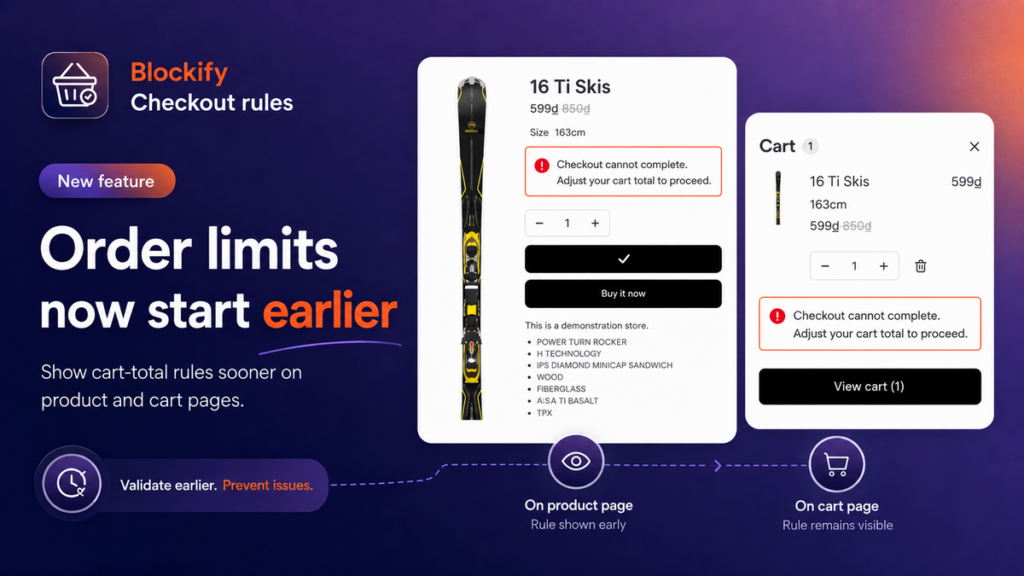
Nothing kills a conversion faster than surprise rules at checkout. A shopper fills their cart, reaches the final step, and suddenly hits a wall because they bought too few, too many, or skipped a required multiple. Most won’t loop back to adjust – they just walk away.
That friction stops today. We are excited to announce that Order Limits in Blockify Checkout Rules now works right on your product and cart pages, catching issues before customers ever reach checkout.
Prevent Cart Abandonment with Real-Time Cart & Product Page Rules
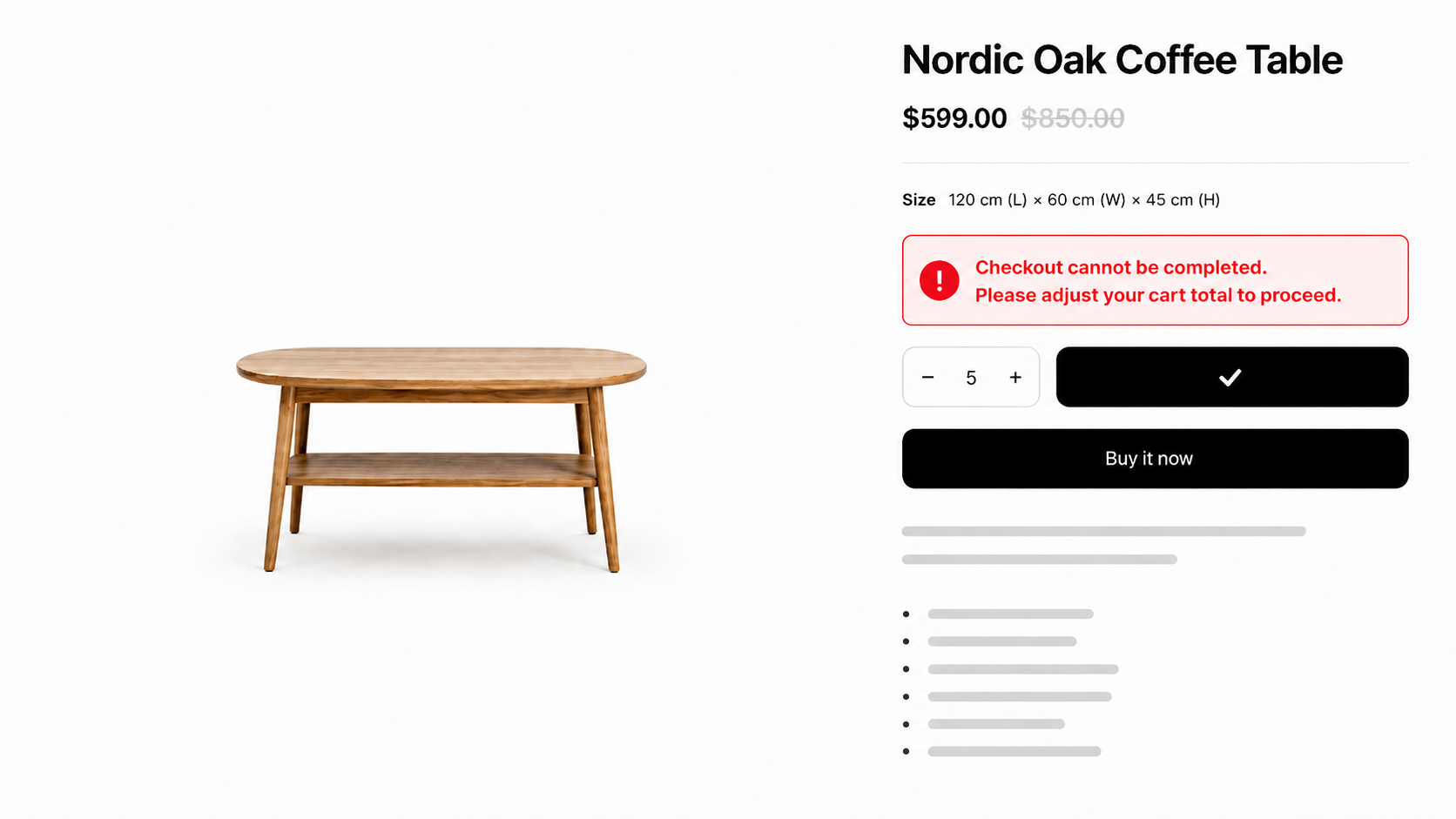
Early Warnings on Product & Cart Pages: Customers see instantly when an order doesn’t meet your rules – whether it’s a quantity limit, order value threshold, or set multiples (e.g., packs of 6, 12, or 24). They can adjust on the spot without frustrating surprises at checkout.
Watertight Express Payment Protection: Limits apply everywhere – including fast payment buttons like Apple Pay, Google Pay, and Shop Pay. Nobody slips past your rules with a one-tap checkout.
Available on Every Plan: Order Limits counts as a single checkout rule. Free plans get 1 rule, Basic gets 3, and Premium/Plus get unlimited rules.
High-Converting Order Limit Examples for E-commerce Stores
- High-Demand Drops: Cap limited-edition items (e.g., max 2 per customer) to give everyone a fair chance.
- Minimum Order Thresholds: Require a minimum quantity or total cart value before proceeding.
- Pack & Wholesale Selling: Restrict purchases to strict multiples like 6, 12, or 2.
How to Set Up Shopify Order Limits in 5 Minutes
- Go to Shopify Admin -> Blockify Checkout -> Checkout Rules.
- Under Product page & Cart page section, select Order Limits and click Create a new rule
- Choose a status (Active, Draft, or Test Mode to test safely).
- Set your internal Rule name.
- Define your IF condition (e.g., set product quantity limits or cart value ranges). Note: Combining multiple conditions with AND/OR logic is available on Premium and higher.
- Set your THEN message behavior to customize the exact banner text your shoppers see.
- Preview your layout, toggle to Active, and click Save.
Frequently Asked Questions About Blockify Order Limits
Does this block express checkouts like Apple Pay or Shop Pay?
Yes. Enforcement happens on the server level right through to order completion.
Can I customize the warning banner color?
Not directly in the app UI yet, but our support team is happy to add custom CSS to match your theme.
Why don’t I see shipping address or payment method conditions?
Because these limits run early on product and cart pages, shipping and payment info isn’t collected yet. Conditions are focused on cart items, values, customer tags, and B2B settings.
Pro tip: Always use Test Mode first to verify your rules before going live to ensure real customers have a seamless experience.
Ready to smooth out your buyer journey and save lost sales? Try setting up your first Order Limit today!
