
How to Customize Shopify Checkout Page (2026 Guide)

Shopify checkout allows customization, but the level of control depends on the plan a store runs. A merchant who wants to customize Shopify checkout page elements has to work within the boundaries that Shopify sets for that specific plan.
| What you’ll learn in this article: ● What Can You Customize on a Shopify Checkout Page? ● How to Edit Your Customize Shopify Checkout Page ● Shopify Checkout Blocks Explained ● Why use Blockify for Shopify checkout customization ● Best Practices for a High-Converting Custom Shopify Checkout |
What Can You Customize on a Shopify Checkout Page?
Shopify checkout customization falls into three main categories: branding, content blocks, and functionality. Each category solves a different problem, so a merchant typically combines all three to build a checkout that matches the brand and reduces friction.
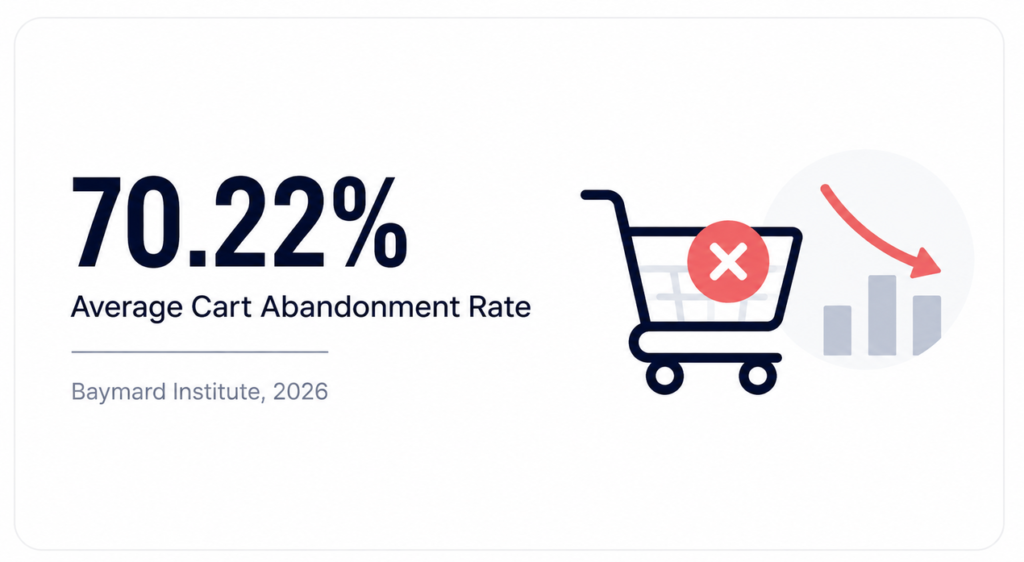
Friction at checkout carries a real cost. According to Baymard Institute’s 2026 research, the average documented cart abandonment rate sits at 70.22%, and a long or complicated checkout flow remains one of the most common reasons shoppers give up before paying. That gap is exactly what customization aims to close.
Branding and visual elements
The Checkout and Accounts Editor lets a merchant adjust the visual identity of checkout without touching code. A consistent look here builds trust and keeps the buying experience aligned with the rest of the storefront.
- Logo placement and size
- Color palette for backgrounds, buttons, and text
- Font families and typography scale
- Button styles and corner radius
- Layout structure, including one-column or two-column views
- Order summary position and appearance
Checkout content and blocks
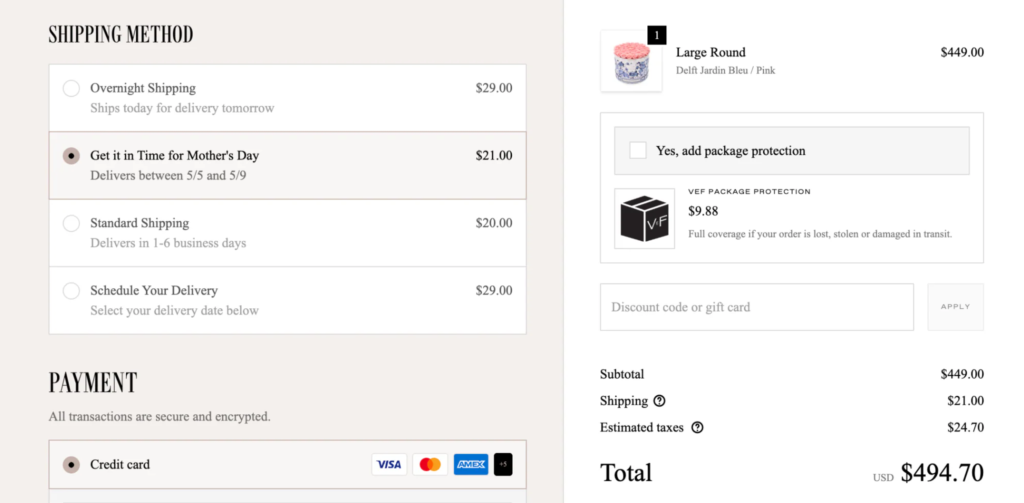
Checkout Blocks add informational and interactive elements directly into the checkout flow. A merchant places these blocks at specific points, such as above the payment section or below the order summary, to guide the buyer at the right moment.
- Banners for promotions or announcements
- Trust badges near the payment button
- Custom fields for gift notes or special instructions
- Gift messages tied to specific products
- Shipping and payment method icons
Checkout functionality
Functional customization goes beyond appearance and changes how checkout actually behaves. A truly custom Shopify checkout usually lives at this layer, not in colors or fonts. Shopify Functions power most of this layer, and merchants pair them with apps to avoid writing custom code.
- Validation rules that block invalid carts or addresses
- Shipping and payment method customization, including hiding or reordering options
- Upsell offers before or after payment
- Loyalty point redemption at checkout
- Delivery date and time selection
- Custom logic through Shopify Functions
How to Edit Your Customize Shopify Checkout Page
Editing checkout follows a straightforward path inside the Shopify admin. The steps below apply to every plan, though some options only appear for Plus stores.
Step 1. Open Checkout and Accounts Editor
Navigate to Settings, then Checkout, and open the Checkout and Accounts Editor. This screen shows a live preview of the checkout flow alongside the editing panel.

Step 2. Customize branding
Select the Branding tab and adjust colors, fonts, and logo. Every change reflects instantly in the preview, so a merchant can compare options before publishing.
Step 3. Add checkout blocks
Click Add block inside any editable section and choose from the available block types. A merchant can drag blocks to reorder them and set visibility rules for specific pages, such as the Information or Payment step.
Step 4. Install checkout apps
Visit the Shopify App Store and search for the functionality the store needs, whether that means validation, upsells, or delivery scheduling. Once installed, most apps add their own blocks directly inside the editor.
Step 5. Preview and publish
Review the full checkout flow on desktop and mobile before publishing. A final preview catches layout issues that only appear on smaller screens.
Shopify Checkout Blocks Explained
Checkout Blocks are modular components that merchants place at fixed points inside the checkout flow. Originally launched as an independent app and acquired by Shopify in 2024, they enable checkout customization through Checkout Extensibility.
Each block serves one purpose and renders through Shopify’s native checkout engine, so performance and Shop Pay compatibility stay intact. Merchants can build a customized checkout experience by combining multiple blocks together.
Common Checkout Blocks
Available on All Plans (Thank You + Order Status)
- Static content such as text, images, or banners
- Dynamic content based on customer or order data
Shopify Plus Only (Full Checkout)
- Custom fields for notes, instructions, or gift messages
- Line item editing for quantity or variant changes
- Shipping and payment icons for trust and clarity
- Address validation for checking address format
Best use cases
Blocks work best when they solve a specific, recurring problem rather than adding decoration for its own sake.
- Gift message field for a specialty or occasion-based store
- Terms and Conditions checkbox for legal or compliance needs
- Delivery instructions field for local or same-day delivery
- Promo banners tied to a live discount code
- Trust badges positioned right above the payment button
Checkout Blocks vs custom code
Custom code through checkout.liquid no longer works for new stores, and Shopify plans to phase it out entirely. Checkout Blocks fill that gap, though the two approaches still differ in flexibility and effort.
| Factor | Checkout Blocks | Custom Code |
|---|---|---|
| Ease of setup | Fast, no-code | Slow, requires developers |
| Flexibility | Limited to available block types | High, fully custom logic |
| Maintenance | Handled by Shopify updates | Merchant owns all updates |
| Best for | Most stores, quick iteration | Complex Plus-only requirements |
For the majority of merchants, Checkout Blocks deliver enough flexibility without the maintenance burden that custom code carries.
Best Shopify Checkout Apps
The right checkout app depends on the specific problem a store needs to solve. Instead of browsing a generic list, a merchant should match the need to the app category first.
| Need | Recommended app type | Highlights |
|---|---|---|
| Checkout customization | Checkout Blocks | Free app by Shopify, full checkout editing requires Shopify Plus |
| Checkout rules and validation | Blockify Checkout Rules | 35+ conditions, hide or reorder payment and shipping methods |
| Upsell and AOV | Post-purchase upsell apps | Offers after payment, no checkout friction |
| Delivery date | Delivery scheduling apps | Lets customers pick date and time slots |
| Loyalty | Loyalty and rewards apps | Points redemption at checkout |
| Fraud and spam prevention | Blockify Fraud Filter | Blocks risky orders before payment |
Why use Blockify for Shopify Checkout Customization
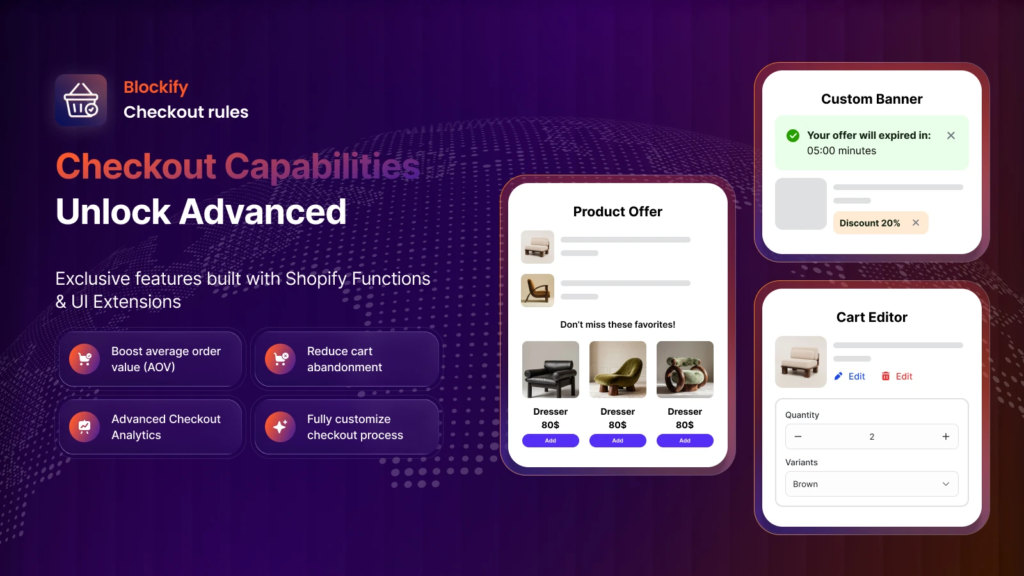
Blockify Checkout Rules focuses on the functional side of checkout: rules, validation, and payment or shipping logic. A merchant sets conditions based on cart value, customer type, location, or order history, and checkout adjusts automatically.
Core features include:
- Checkout rules with over 35 conditions to hide, reorder, or rename payment and shipping options
- Order limits and cart or address validation to catch invalid or risky orders before payment
- COD fee control, including options to charge or waive Cash on Delivery fees
- Post-purchase upsell blocks to lift AOV without adding friction to the main flow
- Separate rule sets for B2C and B2B checkout experiences
- Order Status Page customization on Premium and Shopify Plus plans
Blockify fits stores that deal with a high volume of orders, multiple shipping zones, or a mix of B2C and B2B customers who each need a different checkout path. A store that mainly needs visual banners or trust badges can rely on native Checkout Blocks instead and add Blockify once rule-based logic becomes necessary.
Best Practices for a High-Converting Custom Shopify Checkout
Customization only helps when it removes friction rather than adding it. The practices below keep checkout fast while still giving a merchant enough control over the experience.
- Keep checkout clean and remove any block that doesn’t serve a clear purpose
- Add only essential custom fields, since every extra field slows the buyer down
- Preserve Shop Pay performance by avoiding heavy custom scripts near payment
- Optimize every block and layout choice for mobile, since most traffic checks out on a phone
- Test checkout regularly across devices, browsers, and customer segments
- Measure conversion impact after every change instead of assuming it worked
A merchant who follows this cycle catches problems early and avoids the drop-off that comes from an untested checkout flow.
FAQs
Can I add custom fields to checkout?
Yes, but only on Shopify Plus. Merchants can add custom fields to the checkout using Checkout Blocks in the Checkout and Accounts Editor without writing code.
Are checkout apps compatible with all Shopify plans?
Most checkout apps work across all plans, though some advanced features, such as Plus-exclusive condition sets, only unlock on Shopify Plus.
Does customizing checkout affect conversion rates?
Yes, and the effect can go either way. Clear, relevant checkout options tend to raise conversion, while cluttered or slow checkout pages tend to lower it.
Can I use custom code in Shopify checkout?
Custom code through checkout.liquid no longer works for new stores. Shopify Functions power validation, payment, and delivery rules. You can access them on any plan from Basic up by installing a public app built with Functions; writing your own custom Function app requires Shopify Plus.
Conclusion
Every store can customize Shopify checkout page elements to some degree, and the right approach depends less on ambition and more on the plan a store runs. Branding edits cover most needs on Basic, Grow, and Advanced plans, where Checkout Blocks is limited to the Thank you and Order status pages and checkout rules come from Shopify Functions apps. Shopify Plus unlocks the full checkout – custom fields, address validation, and unlimited checkout UI extensions.
The safest path in 2026 stays clear: lean on native Checkout Blocks first, add a rules app like Blockify once validation or payment logic gets complex, and reserve custom code for Plus-only cases that nothing else can solve. A merchant who follows that order builds a checkout that looks on-brand, blocks the right orders, and still converts.
