
Checkout Analytics for Components | Blockify Checkout Rules

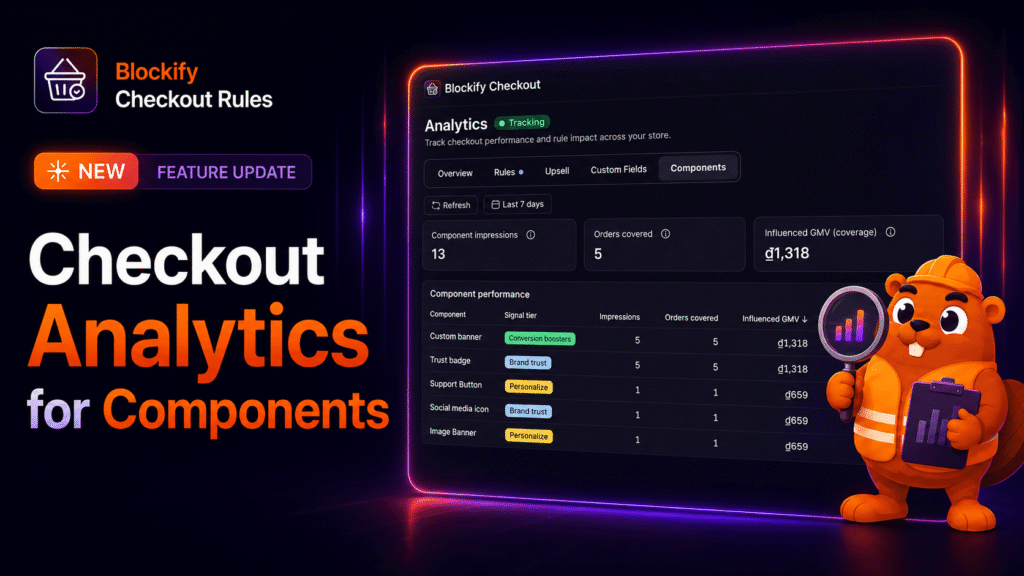
You spend significant time and effort fine-tuning your Shopify checkout – adding trust badges, free shipping progress bars, validation rules, upsell offers, and custom fields to collect vital order data. Yet until now, determining whether these elements were actually driving revenue or causing friction meant relying on guesswork and disconnected store-wide metrics.
Checkout Analytics changes that by giving you direct, near real-time visibility into how your checkout is performing and how Blockify Checkout Rules directly impacts your bottom line. By tracking store-wide completion funnels, revenue saved through validation rules, upsell conversion, and granular custom field interactions, you can pinpoint drop-offs and make data-backed optimization decisions.
Core Blockify Checkout Analytics Features: Funnel Tracking, Rules, Upsells, and Custom Fields
The new reporting interface consolidates store performance data into four specialized tabs. Each tab isolates a critical layer of the checkout experience, taking you from broad conversion funnels down to component-level customer interactions.
1. Overview Tab: Store-Wide Funnel Metrics and Drop-Off Tracking
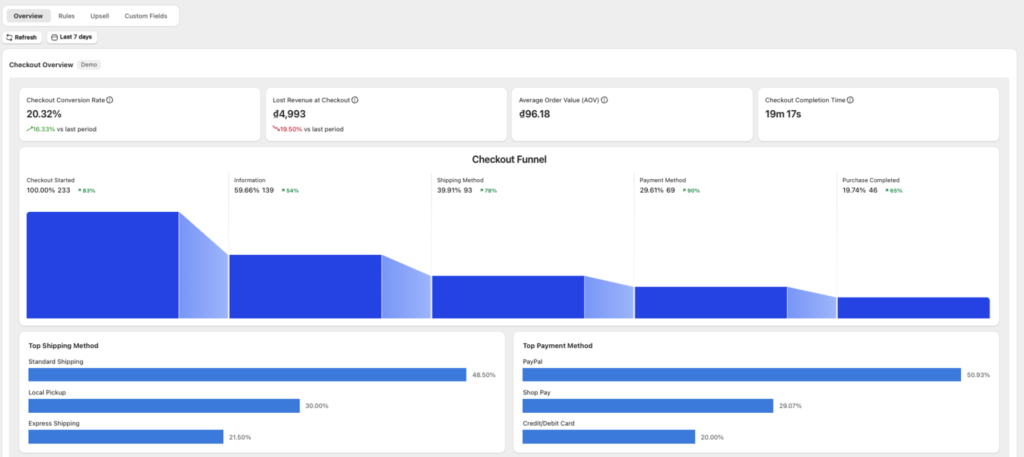
The Overview tab monitors your store-wide checkout baseline using native Shopify checkout data to help you identify friction across the entire buying path:
- Checkout Conversion Rate & AOV: Track the percentage of initiated checkouts that convert into completed orders alongside your Average Order Value.
- Lost Revenue: Calculate the exact total cart value left behind by abandoned checkouts.
- Checkout Completion Time: Measure the average time customers require to finish an order.
- Checkout Step Funnel: Visualize progression and isolate abandonment rates step-by-step (Information → Shipping → Payment → Order).
- Top Shipping & Payment Methods: Identify which fulfillment options and payment gateways your shoppers select most often.
2. Rules Tab: Checkout Validation Performance and Saved Revenue
The Rules tab measures how effectively your validation logic protects your store against invalid submissions, fraudulent orders, and shipping errors:
- Checkout Validation Triggers: The aggregate number of times validation rules were triggered.
- Saved Revenue: Total cart value protected by Blockify rules by stopping invalid or unauthorized purchases.
- Validation Breakdown Table: An itemized breakdown displaying the exact execution count and performance of each individual rule.
3. Upsell Tab: Product Offer Acceptance and Revenue Uplift
The Upsell tab quantifies the direct financial impact of in-checkout and post-purchase product promotions:
- Upsell Acceptance Rate: The percentage of customers who accepted an upsell offer when presented.
- Revenue Uplift: The total incremental revenue directly generated through accepted upsell components.
- Best Product Upsell Ranking: A comparative table ranking your highest-converting offers to help you decide which products to scale or retire.
4. Custom Fields Tab: Component Impressions, Responses, and Influenced GMV
Available on Premium and Shopify Plus plans, this tab reports on customer engagement with every Custom Field component deployed across your Checkout, Order Status, and Thank You pages:
- Impressions & Responses: Measures every time a field renders in the customer’s viewport versus how many times it was completed and submitted with an order.
- Conversion Rate with Trend Comparisons: Displays real-time response rates (Responses ÷ Impressions) alongside trend arrows comparing performance to the previous matching date window.
- Influenced GMV & Reach: Evaluates component exposure by showing how many completed orders displayed a given element and the total GMV passing through those checkouts.
- Recent Responses & Searchable Detail View: Preview the three latest customer submissions directly on each card or click into the detail page to filter and search responses by order ID, customer name, and submission date.
Why Checkout Analytics Is Essential for Shopify Conversion Rate Optimization (CRO)
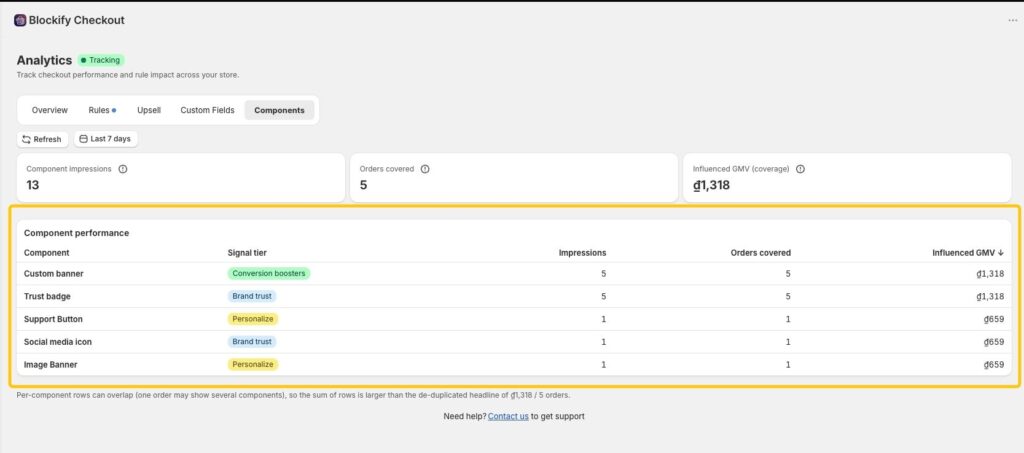
Optimizing a Shopify checkout requires balancing fast order completion with essential data collection and fraud prevention. Without component-level analytics, merchants risk keeping low-performing fields that slow shoppers down or disabling profitable upsell widgets prematurely.
Spot Dead Checkout Components and Reduce Friction: If a custom field generates high impressions but low response rates, customers are seeing it and choosing to ignore it. Identifying these drop-offs allows you to reword field labels, make inputs optional, shift them to the Thank You page, or remove them entirely.
Quantify Rule ROI with Saved Revenue: Rather than guessing whether checkout restrictions are helping your store, use the Saved Revenue metric to verify the exact cart value protected from bad addresses, fraud, or policy violations.
Evaluate Upsell Lift Against Baseline AOV: By evaluating Revenue Uplift and Acceptance Rates alongside your store’s baseline AOV, you can confirm whether an offer genuinely expands order margins or simply cannibalizes standard item sales.
Compare Performance by Funnel Page: A component asking for customer feedback or marketing attribution (“How did you hear about us?”) can hurt completion rates when placed inside active checkout steps, but convert effectively on the Thank You page. Page-level segmentation ensures every field sits where it performs best.
How to Activate and Monitor Blockify Checkout Analytics in Shopify Admin
Analytics tracking begins as soon as data collection is enabled in your Blockify dashboard. Follow these steps to set up your reporting and review your metrics.
- Access the Analytics Dashboard: From your Shopify admin, navigate to Blockify Checkout and click Analytics in the main navigation.
- Activate Data Collection: Click Activate Analytics. Real-time tracking begins immediately, with the first store metrics populating within a few minutes of incoming orders.
- Configure Date Ranges and Component Filters: Select your target timeframe from the date range selector (Last 7 days, Last 30 days default, Last 90 days, This month, or Last month). On Premium and Plus plans, use the segmented control to filter Custom Field performance across Checkout, Order Status, and Thank You pages.
(Note: Full live reporting across all four tabs is available on Premium and Shopify Plus plans. Stores on Free or Basic plans have access to 7-day overview reporting and demo data. If you downgrade plans, all historical Custom Fields data remains securely stored in our database and is fully restored when upgrading back to Premium or Plus.)
Scale Your Shopify Checkout Optimization with Blockify Analytics
Stop guessing which checkout widgets, validation rules, and upsell offers are driving results. Activate Checkout Analytics in your Blockify dashboard today to monitor funnel health, protect revenue, and optimize checkout conversion rates with real data.
Have questions about interpreting your numbers or configuring checkout rules? Reach out to our team directly via in-app live chat or install Blockify Checkout Rules on the Shopify App Store.
